博客

  • 首页顶部应该放置什么内容——“首屏”内容技巧

    Tips-For-“Above-the-Fold”-ContentWhat you put in the top of your front page has a huge impact on the success or failure of your website. Put the wrong thing in, and you’ll probably see your visitors quickly navigating away from your site. Put the right content there and you may see your sales go up.

    This article isn’t an all-in-one guide for creating above the fold content, nor is about an all-encompassing rule on what you should put in. Rather, I will give you a few tips, recommendations and a little bit of helpful research about this topic.

    在直接深入探讨之前,最好先了解一下首页最顶部的区域叫什么。它有一个比“网站顶部”更贴切的名字。

    file000153814713_

    “首屏”(Above the Fold)

    它被称为“首屏”(Above the Fold,直译为折痕以上)。为什么呢?因为在早期人类阅读纸质报纸的时代,报纸通常是折成两半贩卖的,所以人们第一眼只能看到上半部分。那上半部分(即“折痕以上”区域)刊登着当天最重要的一条或多条头条新闻,而当你展开报纸时,才会看到其余次要的新闻。网站也是如此,您网站的最顶层部分是人们首先看到的内容,当他们向下滚动时,就会看到网站的其余部分,这就像展开一份报纸一样。

    继续沿用报纸的例子,假设你走在街上,看到一个报摊。当你看到报纸时,如果头条新闻很吸引人,你可能就会买下报纸阅读其余的内容。这与网站本质上是一样的,如果访客浏览你的网站并发现首屏内容很有吸引力,他们可能就会被打动,进而向下滚动或浏览你网站的其余部分以获取更多信息。

    尼尔森的研究

    Earlier I said that your above the fold content may make or break your site. Nielsen Normal Group has written a few research articles about this across the years. I’ll quote the summary of their article The Fold Manifesto: Why the Page Fold Still Matters

    The average difference in how users treat info above vs. below the fold is 84%.

    If you just got confused about the wording of the quote, I did too at the start. Let me clarify: That study doesn’t mean that 84% of people do not scroll down, on the other hand I’ve seen other research say that most people do scroll down to the bottom of the page. It also doesn’t mean that the lower part isn’t important. Instead it means that the behavior of your visitors in your site is largely impacted by your content above the fold.

    这是合乎常理的,因为网站的顶部区域是您第一眼看到的内容。

    既然知道了首页首屏内容有多重要,那么您应该在网站顶部放些什么呢?

    开门见山,直奔主题

    立即说明您的网站是关于什么的。您的首页和首屏区域是整个网站的命脉。如果您的访客感到困惑,他们会很快离开并关闭标签页。如果您是一位新书作者,就写明您的身份并展示您的最新作品。如果您是一位婚礼策划师,就写明您是一位能为访客打造终生难忘婚礼的策划师。或者,如果您正在为自己的小型酒店建站,那就写明您是当地最好的民宿旅馆。(我会在下面更多地使用这些示例。)

    您的访客不应该去费心猜测这个网站是做什么的。他们应该能立即看懂,只有这样,他们才会向下滚动去查看更多详情。

    有针对性地引导访客互动

    接下来,您必须考虑您网站的实际目的。您当初建站的初衷是什么?无论原因是什么,您也必须将其放在首屏。

    让我们看一下上面提到的几个例子。对于新书作者,您可能希望获得更多曝光。如果您有一本免费电子书,那么可以放置一个按钮供访客下载。对于婚礼策划师,您希望人们就您的服务联系您,那就放上您的电话号码或联系表单。或者对于小型酒店,放上预订表单和您的电话号码。

    对于 Page Builder Sandwich,我希望人们能更多地了解这款插件,并最终成为付费客户。因此我在那里设置了一个按钮,让访客可以立即试用演示版,另一个按钮用于购买插件。

    设计首屏

    现在我们知道要放什么内容了,接下来就是决定设计的时候了。就我个人而言,我更喜欢干净利落的分区内容,因此我们首页采用了纯色背景。但用图片或视频来配合您的首屏内容也是一个好主意,可以让它更加生动。
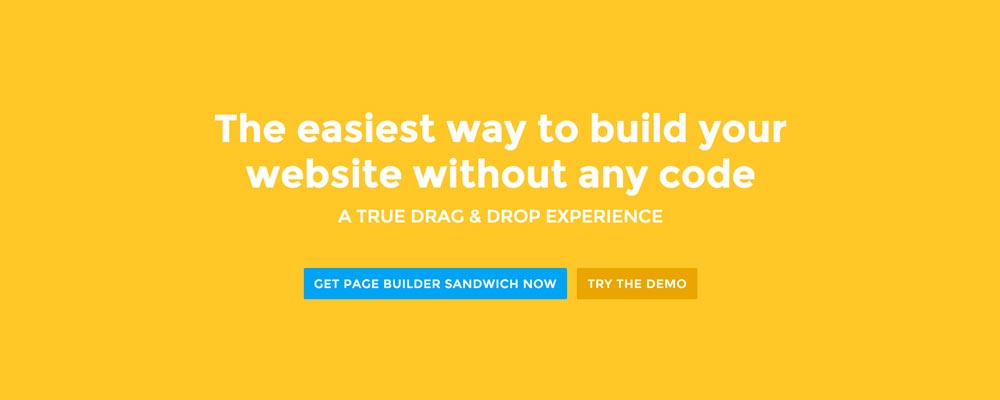
    Screen-Shot-2016-01-29-at-12.11.19-AM_Here’re a few examples of what you can do about your front page.

    Add a background image. A large background image behind your large statement is a great eye-catcher and can further encourage visitor engagement. For new book author, maybe adding a background image illustrating the setting of his free ebook would entice people more.

    Add an introduction video. Admit it, people can be lazy, especially when it comes to reading. So if your site is a bit complicated, it might be a good idea to add a short video that introduces your site/product quickly. For the wedding organizer, then this can be a video of their latest wedding. Or for our site for example, we can add in a quick intro about the features of our plugin.

    Add a video background. This is a bit of a trend nowadays, but I find it appealing at times. If this suits your taste, then this might be a good idea.. I know PayPal had a video background before in their site. For the small hotel, you can put in a stationary video of a scenic area of your hotel as the backdrop.

    结语

    为首页创建首屏内容并不难,但需要经过思考和测试才能做好。如果您已经拥有一个网站并且框架已经固定,但 Google Analytics 中的跳出率很高,那么我建议您根据上述技巧,尝试重新构思您的首屏内容。

    If you have tips on creating above the fold content, kindly share them in the comments!


    Page Builder Sandwich can Help You Design Your Front Page & Above The Fold Content

    Page Builder Sandwich is a WordPress plugin that allows you to create any design you want without writing any piece of code.

    了解有关 Page Builder Sandwich 的更多信息

  • 如何用不到100美元从零开始搭建网站

    How-to-Create-a-Website-from-Scratch-for-Under-$100

    如果您想从零开始创建一个网站,但预算有限且完全没有任何技术背景,那么这篇简短指南正是为您准备的。

    本文专为完全的新手设计,旨在帮助那些只想建个网站而不想面对各种繁琐技术细节的人。因此,无论您是想要一个展示给客户的办公室网站的初创企业主,还是想在网上撰写餐厅点评的美食爱好者,亦或是只需要一个网站的 DIY 达人,都请继续阅读!我会尽量避开技术术语,让一切保持尽可能简单。

    让我们先列举一下完成后我们将获得什么。在本文结束时,您将拥有:

    1. Your own website that people can visit at http://supermegaawesomewebsite.com,
    2. Optionally have your own email address at [email protected],
    3. A certain zen-like state of mind.

    您需要准备什么

    好了,在开始具体步骤之前,我们需要以下准备:

    1. 对您的网站将要做成什么样有个想法,
    2. 一张信用卡或拥有 100 美元额度的 PayPal 账户,以及
    3. 一瓶苏打水或一杯水以防口渴,保持水分总是好的。

    什么是网站?

    在动手之前,首先了解我们究竟在创建什么非常重要。是的,我们要创建您自己的网站,但它到底是什么呢?

    In a nutshell, a website is a bunch of files in a special computer, and this special computer can be accessed by using a special web address on your web browser. After accessing the web server, it’s going to crunch those files together and in the end we would be able to see a pretty looking web page.

    Sorta techy terms:

    • bunch of files = web pages
    • special computer = web server
    • special web address = domain name or URL

    上一段中的粗体字就是我们需要获取的内容。幸运的是,有一个地方可以让我们一次性备齐所有这些。

    在网络上占据一席之地

    我建议选择 GoDaddy 的托管 WordPress 主机 – 基础计划。该计划提供了我们立即建站所需的一切,省去了绝大部分麻烦。最棒的是,我们完全不需要操心搭建过程中的技术细节。

    如果您想知道什么是“托管 WordPress 主机”计划,我来为您分解一下:

    • Managed – GoDaddy will be the ones who’ll make sure that everything runs smoothly, updated, fast and without any problems. And if you need any help, you can ask their customer support.
    • WordPress – This the content management platform that will be used. It’s what you’ll use to publish your content online. It’s awesome. If you want to know more about WordPress, WP101 has a great intro video on What WordPress Is
    • Hosting – Everything will be placed in GoDaddy’s servers, so everything can be accessed quickly and with almost no down time.

    When getting the plan from GoDaddy, they also provide you with a domain name for free. This is awesome since now we don’t have to do anything aside from signing up in order to get the full package!

    作为额外福利,购买他们的基础计划还可以获得电子邮件地址。第一年免费,因此如果您打算使用电子邮件与客户及其他人交流,这绝对是不二之选。

    点击下方链接查看他们计划的更多详情(声明一下,他们没有付钱让我推荐):

    查看 GoDaddy 的托管 WordPress 主机方案

    填写所有详细信息,找到您想要的域名(您不必使用 supermegaawesomewebsite.com),然后继续结账付款。

    I recommend that you sign up for at least one year so that you can avail of their discounts. You can also scour the web to check if there are any promos available.

    Web Server Cost: $12.18 – $59.88 for 1 year (the key here is to find a promo) Email Cost: $0 for 1 year Domain Name Cost: $0 for 1 year

    Total Cost so far: $12.18 – $59.88

    恭喜,您现在拥有了一个 WordPress 网站!

    获取 GoDaddy 主机后,您的网站现在应该已经可以完全正常运行了。您可以开始在浏览器中访问您的域名 http://supermegaawesomewebsite.com 查看您的网站。

    对网站的初印象可能是它看起来……空荡荡的……但这很正常。别担心,让我们来把它充实起来!

    访问您的网站

    Since you’ve signed up with GoDaddy, they’ll give you a URL where you can access the administration side of your website. If you can’t find it, you can add a /wp-admin at the end of your URL. e.g. http://supermegaawesomewebsite.com/wp-admin and log in from there. Once logged in, you’ll end up in your WordPress Dashboard.

    GoDaddy 拥有自己的“快速设置”系统,以帮助初学者自定义其网站。如果您不熟悉 WordPress 的运作方式,我建议走一遍这个设置流程。

    学习 WordPress

    现在是熟悉 WordPress 的时候了。正如我之前提到的,WordPress 是您现在用于发布内容的平台。换句话说:您登录到您的网站,创建页面和博客文章,然后只需点击发布按钮即可。

    接下来的步骤就是学习如何使用 WordPress。如果您以前从未使用过 WordPress,初次看到仪表盘时可能会觉得信息量过大。我建议您按照自己的节奏探索不同的区域。

    If you need guidance, there are a lot of tutorials on how to use WordPress online too. One of them is WP101. WP101 makes things super easy by providing lots of tutorials in video format, and they have a huge library of videos that will teach you all the ins and outs of WordPress.

    They have a few free videos in their site. For example, you can watch WP101’s video tutorial about the WordPress Dashboard.

    查看 WP101 的视频教程

    Video Tutorials Cost: $15 per month (if you can obsess over all their videos within the first month, then you’re golden)

    Total Cost so far: $27.18 – $74.88

    让您的网站更美观

    The next step is to change the design of your site to make it match your personality and/or needs. You’ll need themes for that. In short, themes are like “skins” for your WordPress site.

    There are a ton of free and paid themes out there. If you want free themes, then there’s no doubt that the WordPress.org theme directory is your number one option.

    Since there are a lot out there though, it’s sometimes hard to find the perfect one for you. Theme Friendly’s Find Themes helps by providing reviews for themes and gives them a score based on their review. They have a number of themes in their site, and probably the best thing there is that you can click on filters while browsing themes, so you can view only themes fit for portfolios, businesses or blogs, and many more.

    There are also paid themes, but for starters I would recommend the free ones first. If you decide to take the premium route check out Premium WordPress’ list of theme shops.

    If you’re wondering why I didn’t mention ThemeForest, it’s because there are a lot of themes there that add a lot of bloat (unnecessary features) to your site. So if you really want to find a theme from there, tread carefully.

    Theme Cost: $0 – $70 one time (I’d recommend looking for promos in theme shops too)

    Total Cost so far: $27.18 – $144.88

    为您的网站添加更多功能

    As you create your site and continue to add content to it, you might find yourself wanting to add more stuff like contact forms, maybe some icons, or a Google Map, or something else. For these kinds of stuff, you’ll need plugins.

    As with themes, there are also a ton of free and paid options. And like themes, the number one choice for free plugins is the WordPress.org plugin directory. It’s a common saying within the WordPress community that if you need something in your site, “there’s a plugin for that.”

    For premium plugins, you can also find premium ones in CodeCanyon.net. But I would recommend going through the thousands of free ones in the WordPress.org plugin directory first.

    Plugin Cost: $0

    Total Cost so far: $27.18 – $144.88

    Conclusion

    You might have noticed that the total cost indicator is a range instead of a solid number. It’s because there are various ways to push the cost down like watching out for promotions, and opting for free themes & plugins.

    So if you play your cards right, you can actually have your own site from scratch (powered on for a full year), for only $27.18

    Most likely the succeeding years won’t be as cheap as the first year, but if you have your site up and running for at least a year already, then I would like to think that it’s a success and the other future costs aren’t a problem anymore.

    Hopefully you’ve learned a bunch from this article. And if you didn’t know about WordPress before and you’re now a proud WordPress user, consider joining the numerous WordPress communities online. Just search for a WordPress group in Facebook :)

    等等!先别关闭标签页!

    稍等一下!在您关闭此标签页之前,我想提一下 Page Builder Sandwich。我上面介绍了很多很棒的东西,但您还没见过 Page Builder Sandwich 呢。

    Page Builder Sandwich 能让您无需了解任何代码,即可轻松设计全新网站中的页面。它的外观和操作类似于编辑文字处理文档,但它是用于网站的。有了它,您可以轻松添加轮播图、图标、按钮、图片背景等更多元素,让您的网站更加出彩。

    You can try out the demo, or watch the video below. What’s cool is that we’re still below the $100 limit :)

    试用 Page Builder Sandwich 演示

    Page Builder Sandwich Cost: $39 for 1 site

    Total Cost so far: $86.18 – $203.88

  • Page Builder Sandwich Lite 现已在 WordPress 插件库上线

    PBS-Lite-Is-Now-Available-In-The-WP-Plugin-RepoNow you can download the Lite version of Page Builder Sandwich from the WordPress.org plugin repository!

    Lite 精简版是高级版插件的精简版本,但依然完全可用。以下是 Lite 版本中提供的功能和工具列表:

    • 实时前端编辑
    • 直接点击即打字编辑,告别弹窗困扰
    • 文本格式化工具:颜色、加粗、斜体、下划线、水平分割线、对齐等,基本上涵盖了您在后台 TinyMCE 编辑器中能做的所有操作。
    • 使用 WordPress 媒体管理器进行图像添加和图像操作
    • 使用 WordPress 链接创建对话框创建链接
    • 块级元素:标题、引用块、无序和有序列表
    • 实时短代码渲染和编辑,以及所有可用短代码的完整列表
    • 具有可嵌套行与列的排版布局
    • 行和列属性:背景颜色、外边距、内边距和边框
    • 正常可用的撤销/重做
    • 以及更多精彩功能!

    立即下载精简版

    如果您看过了插件页面,并且纳闷为什么这个插件看起来不是全新的,那是因为这并非该插件的第一次迭代。一年前,它还是一个后端 页面构建器,但我不太满意。经过几个月的深思熟虑和头脑风暴,我转向了一个完全不同的方向,现在它变成了一款很棒的前端页面构建器,我自己也用得非常顺手。

    这适用于我的主题吗?

    从技术上讲,这应该适用于任何及所有主题。我们与用户和客户一起,已经成功在许多主题上使用了 Page Builder Sandwich,包括来自 WordPress.org 主题目录的主题、Genesis 主题、StudioPress 主题、Elegant Themes 以及来自 ThemeForest 的主题。如果它无法在您的主题上运行,请告诉我们,我们会进行修复。

    这适用于我现有的内容吗?

    Page Builder Sandwich 可以很好地配合您现有的内容。您的内容应该可以直接在前端进行编辑!

    如果您的内容充斥着层层嵌套的短代码(例如,如果您正在使用分栏短代码),我们建议您先清理并删除这些分栏短代码。Page Builder Sandwich 自带纯 CSS、免短代码的响应式分栏。改用这些分栏会更好,因为它们速度更快、更稳定。

    首发特惠折扣

    如果您想要更多功能,例如全宽行、高级文本、图像、行和列格式化,那么您一定会喜欢高级版。您还将获得插件更新和客户支持。

    For the next few days, we’re offering you a 50% introductory discount. Take advantage of this now!

    If you’re unsure, give the lite version a spin on your own setup first, or check out the live demo from the top menu ?

  • 现已支持 Markdown,以及几款很酷的格式工具

    Markdown-Now-Supported,-Plus-A-Few-Cool-Formatting-Tools很高兴地宣布,从 2.4 版本开始,您现在可以在前端使用 Markdown 编辑内容了!

    Markdown 语法支持

    什么是 Markdown?它基本上就像快捷键一样,但您不需要按组合键,而是直接输入特定字符,格式就会立即应用。WordPress 最近也刚刚添加了 Markdown 支持,现在您也可以在 Page Builder Sandwich 中使用这些功能了。您可以通过 Markdown 添加不同的标题、块引用、预格式化文本或代码、水平分割线、项目符号或编号列表以及链接。

    可以将其视为 用鼠标点击格式化按钮的替代方式。例如,在撰写博文时您决定要再添加一个标题,现在只需输入两个井号(##),然后输入您的标题文本。一旦按下回车键,整行就会转换为 <h2> 标签。这有多酷?

    您可以从我们的文档页面找到所有支持的 Markdown 语法列表:http://pagebuildersandwich.helpscoutdocs.com/article/4-how-to-use-markdown

    您也可以通过在线演示

    几个很酷的格式化工具与功能

    同样值得一提的是,现在您可以使用一些新工具:

    • 按钮工具 – 现在您可以创建无需短代码的按钮!以前,您只能创建锚点链接,现在不再局限于此!最棒的是,您可以直接编辑按钮文本和颜色,而无需面对繁琐的弹出窗口。
    • 代码工具 – 开发者们欢呼吧,现在您可以将内联文本设置为 code.
    • 水平分割线工具 – 非常适合用于分隔内容。这也有相应的 Markdown 语法,只需在一行中输入一个或多个破折号,它就会转换为水平分割线。

    除此以外,还有一些新的便捷功能:

    • 每当您粘贴链接时,它都会自动转换为锚点标签(除非它是可嵌入的 URL,例如 YouTube 视频,这种情况下内容将被嵌入)。
    • 直接将图像从访达(Finder)或文件资源管理器拖入窗口中,即可将图像上传到媒体库中。这非常省时。
  • 版本 2.2 进度更新

    Version-2-2-Progress-Update上周我们发布了 2.1 版本,修复了许多错误,并为 Page Builder Sandwich 添加了 WordPress 链接编辑器对话框。

    现在我们解决了 Page Builder Sandwich 中呼声最高的两大需求功能:

    1. 更加流畅、更整洁、更简单且经过重新设计的用户界面。
    2. 为元素、行和列添加/编辑自定义 CSS 类和 ID 的功能。

    旧界面看起来像是多个按钮的杂乱堆砌。从技术上讲, 它确实 很简单,因为按钮就在那里,直接点击即可。 但实际上,它的外观和操作感受并不简单,对新用户来说甚至有点令人望而生畏(感谢我们的支持者指出这一点)。因此,现在所有不同的工具都已整合归类为相似的工具组:文本格式化、行与列等。为了消除这种压迫感,刚开始时只会显示最基础的按钮。更“高级”的工具可以通过切换显示在视图中。这样可以让新用户仅通过了解核心布局就能先快速上手,当他们觉得得心应手时,便可以查看其余的工具。

    看到有这么多人请求允许按元素编辑自定义类和 ID,我感到很惊讶。就个人而言,我在使用页面构建器时很少使用这些工具,但这也只是我个人习惯。添加自定义类和 ID 的挑战在于,它应当秉承 Page Builder Sandwich 的理念,即一切尽可能保持简单和直观。因此在 2.2 版本中,当您在页面中选择任何元素时,应该会在属性检查器中看到一个属性区域,可以在其中添加或修改自定义 CSS 类和 ID。这同样适用于行和列,因此您可以完全根据需要对它们进行调整。

    感谢大家对 Page Builder Sandwich 开发的支持!敬请期待未来的更多更新 ?

  • 现已支持嵌入视频、音频及其他内容

    Embedding-Video-Audio-and-Other-Content-Now-Supported祝大家新年快乐!

    我很高兴地与大家分享,从 2.3 版本开始,Page Builder Sandwich 现已支持 oEmbed!现在您可以嵌入来自 YouTube、Vimeo、Twitter、Flickr、Instagram 等平台的视频、图片、推文以及大量其他内容。

    oEmbed

    到目前为止,前端除了简码(shortcodes)之外,一直没有办法添加视频或任何其他类型的可嵌入内容。我很高兴地宣布,现在已经完全支持 oEmbed 了。只需在任意位置粘贴 oEmbed URL 并按回车键,它就会自动嵌入。

    oembed_cast
    在单行中粘贴 URL 会将其转换为嵌入内容。

    支持哪些 URL 呢?只要是 WordPress 支持的嵌入 URL 都支持!此外,如果您安装了添加 oEmbed 提供商的插件(例如 WordPress.com 的 Jetpack),那些也同样受支持。

    这项新功能最棒的地方可能在于嵌入不会使您的内容变得混乱。后台编辑器中的嵌入式 URL 将显示为单行 URL 字符串。

    如果您想体验一下,请点击上方的在线演示链接,并在那里粘贴一些 URL 试试吧!

    其他改进和问题修复

    • 内容类型工具按钮(p、h2、h3 等)现在会根据所选内容进行高亮显示。
    • 行高现在应用于整个元素,而不是较小的 span 元素。
    • 已修复:元素有时会获得不必要的内联样式
    • 已修复:检查器可能会跑到管理栏下方而导致无法拖动
    • 已修复:优化了按钮状态的处理
    • 已修复:设置/取消格式会移除带链接的文本
    • 已修复:无法格式化包含 strong、em、i、b 标签的内容
    • 已修复:某些格式化工具无法在列和表格内部使用
  • 如何在您的网站中添加和嵌入视频、图片、推文及其他内容

    How-to-Add-and-Embed-Videos-Images-Tweets-and-Other-Content-in-Your-SiteThere may be times where you want to add supporting videos from YouTube or Vimeo into your site. Or maybe you want to add Tweets from Twitter, or content from other websites like Flickr and Instagram. You can embed these content easily in your WordPress site.

    To do this, all you need to do is find the permalink for the content. In some sites like YouTube, the permalink is simply the current URL. For other sites like Reddit or Vimeo, you’ll have to find the “permalink”, “share” or “embed” button to get the URL. In some sites like Facebook, you’ll have to click the date of the status or post in order to get the permalink.

    固定链接有多种形式,但通常它们看起来就像下面这样。这个来自 YouTube:

    https://www.youtube.com/watch?v=dQw4w9WgXcQ​

    您可以将这些 URL 粘贴到内容编辑器中以嵌入内容。如果是可嵌入的,您会看到该 URL 会转换为实际的视频或内容。如果无法转换,则意味着您无法从该网站插入内容。

    我可以在我的网站中嵌入哪些网站?

    Not all sites can be embedded into your WordPress site. The WordPress Codex has a list of sites which you can embed: https://codex.wordpress.org/Embeds

    安装插件可以添加更多可嵌入的网站

    If the content you want to embed isn’t in the list in the WordPress Codex, there is another way. Installing plugins can add more embeddable sites. For example, installing Jetpack allows you to embed wall posts from Facebook.

    There are plenty more out there that add more sites, do a search for “oEmbed provider” in the WordPress.org plugin repository to find more. Here’s a link to the plugin repo for your convenience: https://wordpress.org/plugins/search.php?type=term&q=oembed+provider

    添加内容的另一种方法 – Iframe 嵌入代码

    如果仅粘贴 URL 不起作用,还有另一种嵌入内容的方法。尝试查看您想要包含的站点的分享选项,除了固定链接之外,您可能还会获得一小段“嵌入代码”。嵌入代码看起来像这样:

    <iframe width="420" height="315" src="https://www.youtube.com/embed/dQw4w9WgXcQ" frameborder="0" allowfullscreen></iframe>​

    Copy that then in your WordPress content editor, click on the text tab on the top of the editor and paste that in. After you’ve pasted that in, head back to the visual tab, you’ll see if it works when the embed code now looks like the actual content that will get embedded. You can’t do this in the visual tab, pasting it from there would just show the pasted code in your site, it won’t get converted into the content.

    使用 Page Builder Sandwich 从前端添加其他网站的内容

    While adding content from other sites seem easy, doing things in the administration side of WordPress is a bit of a hassle. You have to know whether to add it in the visual tab or text tab, and you’ll have to preview your page or post in order to see how it would look like when viewed by your site’s visitors.

    Page Builder Sandwich 允许您直接从前端编辑实际网站,让一切变得更加简单。使用 Page Builder Sandwich 时,您可以轻松编写和编辑网站内容。嵌入来自其他网站的内容也变得更加容易。

    使用 Page Builder Sandwich,只需将固定链接或 iframe 嵌入代码粘贴到网站前端的任意位置,它就会立即转换为嵌入内容,无需再纠结需要将内容粘贴到哪个选项卡中。

    立即获取 Page Builder Sandwich。