Category: Updates

  • Introducing Page Builder Sandwich Version 4.0

    When we started developing PBS back in early 2015, we’ve always believed in its potential to surpass its limits. For the past year since its release, our team’s been working very hard, always making sure to go the extra mile in order for PBS to do just that.

    In 2016, we’ve managed to release three versions of PBS, each one surpassing their predecessors with more advantageous updates after the next. Today, in 2017, we’re finally releasing Page Builder Sandwich Version 4.0 in commemoration of its very first birthday.

    We’ll be honest: it wasn’t easy.

    But compared to its humble beginnings in 2015, we’re now confident enough to say that Page Builder Sandwich has definitely come a long way since its days in beta.

    Then vs Now

    Taking a step back and looking at the different versions that PBS went through, it has really changed for the better.  Some learning mistakes just made us cringe and laugh!

    Enhanced User Interface

    For versions 3.0 and 4.0, we’ve made some major improvements with regards to the user interface. Pippin’s insight really made a wake-up call to us!
    The old interface of PBS Version 2.0  (left) vs Version 4.0’s cleaner, more efficient UI (right)

    Engaging in conversation and taking note of feedback has always been important to us, and is (and always will be) an integral part of Page Builder Sandwich’s continued growth. Out of all of PBS’ features though, we’ve received quite a number of critiques regarding the previous versions’ UI’s. All of them had one common denominator that many believed was detrimental to PBS’ functionality: the color scheme. According to most, it was too aggressive and did not compliment WordPress’ color palette. We’ve since addressed this issue in Version 4.0, constructing an improved UI with toned-down colors, all while still keeping PBS’ signature drag-and-drop UI intact.

    Mobile Responsiveness

    Another common feature that most page builders can agree upon is the need for mobile responsiveness, as devices like tablets and cellphones are increasingly dominating the market.

    Because of this, we’ve tackled mobile responsiveness in Version 4.0’s release. Viewing pages built with PBS now becomes a smoother, more efficient experience, with your page’s UI adapting to your device’s screen resolutions.

    In addition to this, PBS now also supports mobile previews on desktop. This way, you’ll be able to easily get a preview of what your page looks like in whichever mode you need to – whether through mobile or tablet – without having to use either.

    What’s more, PBS now allows users to perform changes in desktop, mobile, and tablet, without affecting the others’ screen sizes.

    What’s New: Features

    Full Page Templates

    Another thing we’ve taken note of since PBS’ launch was that users tend to build pages based off of particular niches. This is something natural when it comes to creating pages of course, but for the user, it becomes a bit of a problem when constructing these niche-based pages. For instance, eCommerce sites built with Page Builder Sandwich will probably take more time to make from scratch compared to your typical, everyday blog with a photo gallery. So since the need for these types websites has continuously been increasing, we’ve finally come up with the solution of introducing PBS’ Full Page Templates..

    How are Full Page Templates different from Pre-Designed Sections?

    PBS actually has a feature similar to the Full Page Templates, the Pre-Designed Sections. Since our team has been aware that there are users who lack the time to design and layout their pages and sites, the Pre-Designed Sections were built for this specific purpose. The Pre-Designed Sections are small, individual layouts professionally designed to be mixed and matched together to build a page. However, while they are pre-designed, they aren’t full page, and are not niche-based.

    The Full Page Templates are different in that they’re designed to be used for an entire landing page, and they’re laden with features that commonly go with a particular niche. For example, upon accessing PBS’ Hotel Template, you’ll find that with it comes a map, contact details, and sections specifically designed for enumerating the hotel’s amenities. Similarly, the PBS Fashion Template includes a carousel feature for showcasing fashion ensembles for modern shops. These templates can also be tweaked and adjusted to suit the user’s needs and taste, of course.

    Easier Access to Third-Party Plugins

    WooCommerce, Advanced Custom Fields, Events Calendar, Instagram Feed, Contact Form 7, NextGen Gallery, among others, are now more accessible with Version 4.0. This means that if you have these plugins activated in your PBS-run site, you can now add them with more ease.

    Highly Requested Elements and Features: Enhanced Functionality and More Design Features

    In the span of a year, we would regularly receive suggestions and requests for features that are currently in-demand in the page builder market. Among these include Parallax Scrolling, Video Backgrounds, Ken Burns Backgrounds, features that increase the aesthetic value of your page; and elements such as Pricing Tables, Testimonials, Countdowns, and Milestones to enhance your page’s functionality. With the release of Version 4.0, we’ve finally accomplished these and more. We’re sure your PBS experience will be even more worthwhile this time around.

    What’s Next for PBS?

    We’ve come a long way since our initial launch in January 2016. We’ve made major improvements, and while the task isn’t an easy one, it’s certainly very rewarding. Version 4.0 is only the beginning of even more improvements in PBS, and this 2017, we’ll continue to work hard to make sure that PBS keeps getting better and better. For now though, we hope that you can make full use of these new features, and that they’ll make your experience with PBS all the more worthwhile.

    Happy Site-Building!

  • Celebrating Page Builder Sandwich’s First Birthday with a Bang!

    pbs-v4-ad-3 Yep, that’s right: Page Builder Sandwich is having its very first birthday on 14 January, 2017. Along with our ongoing Holiday Sale (30% off for a limited time, no promo code needed), PBS has a couple of surprises in store for you, and the team can’t wait to share them with everyone.

    For the past year, we’ve grown a lot thanks to the support of awesome pals, some very helpful reviews, and our newly found friends in the PBS Slack community. We couldn’t forget about you guys– the PBS users themselves, who’ve helped us reach this milestone. And so to celebrate, we figured: what better way to give you guys an even better experience than the release of PBS Version 4.0? Cue the confetti.

    In case you missed it, the current version, Version 3.0, has undergone some major changes and improvements. This includes the cleaner, smoother, and more user-friendly interface, plus better responsiveness. For Version 4.0 though, we’ll be throwing in even better stuff! So brace yourselves, because things are going to be a lot more fun, festive, and functional with the upcoming release in January.

    Full Page Templates Feature

    First up in our list of major features are the brand-new Full Page Templates. While PBS is commonly used to build all sorts of different pages, we’ve taken into serious consideration that our users operate their sites under different niches (and therefore different types of websites). Different users have different needs after all, whether for business or personal ventures. That’s why we’ve decided to address this with the upcoming Full Page Templates feature.

    pbs-v4-ag-2 So how do these Full Page Templates work? Simple. For Version 4.0, we’ll be releasing a bunch of awesome templates. These will be split into different categories; each designed for a specific niche. The templates will include elements, layouts, and features for corporate pages, portfolios, eCommerce sites, or just the usual personal blogs (among others) so as to perfectly suit whatever site you need.

    So for example, if you’re running a restaurant, and need a page or website catered (no pun intended) to that kind of business, you can simply choose the restaurant template. And because PBS allows for flexible customization, you’ll still be able style it to your heart’s content. And since your chosen template (in this case, your restaurant) will come with specific features designed specifically for a restaurant-themed business site, it will also come with PBS elements that attend to that type of site’s needs: like an entire section for the menu, a delivery feature, and social media buttons, and a lot more. Now picture something like this for your particular niche– if you’re running a corporate office, or a personal business, or even just a portfolio– don’t worry. With Version 4.0, we’ll be releasing templates for those as well. No doubt they’ll come in handy on your next site-building venture!

    More Elements, More Options

    Along with the new Full Page Templates, we also have a bunch of other stuff coming up! As we always say, PBS exists because we believe that creating amazing, stunning things doesn’t have to be as difficult as everyone makes it out to be. With this in mind, we urge you to take a look at our other upcoming features, so you can see for yourself just what all the neat, wonderful pages and sites you’ll be able to create with PBS!

    Parallax Backgrounds

    Parallax scrolling is a technique used to create a unique, 3D background effect for your browser. It makes for a brilliant eye-catcher for any website, and when done the right way, can definitely boost up your audience count. Still not convinced? Check out this cool website by FireWatch that executes the parallax effect to perfection.

    Video Backgrounds

    Video backgrounds are also a popular effect used on websites, particularly on home pages, landing pages, and hero headers. They’re equally stunning as well, and there’s a reason they’re all the rage, trust us! And with the latest PBS update, you’ll be able to get the chance to give video backgrounds a spin as well. Go ahead and use them to reel your audience in and get more site visits!

    Date Countdown

    For Version 4.0, we’ll also be releasing the all-new Date Countdown. It’ll include your basic features such as setting in the exact date and time you’re counting down to, plus the ever-present flexible customization options we’re sure you’ll love.

    Social Icons

    Want to encourage your audience to spread word about your posts on social media? Fear not, because PBS has your back! With the new social icons, readers will be able to share your website and your content with a simple click of a button.

    We have more in store for you, though! Including:

    • Ability to add posts to your content
    • Progress bars
    • Count up numbers
    • Elements for WooCommerce, Advanced Custom Fields (ACF), Contact Form 7
    • Testimonials
    • Pricing Tables
    • Click to action
    • Image Boxes
    • Icon Boxes
    • Free Image Searching and Downloading
    • Ability to add Custom CSS
    • …and More!

    Responsiveness

    And finally, on top of all of these cool new features, PBS will also be priding itself with even better responsiveness.

    pbs-v4-ag-1 In the past, viewing and editing your PBS page on mobile didn’t exactly prove to be a walk in the park– font sizes wouldn’t match up, images weren’t proportioned- overall, we knew we had to work on PBS’ UI on mobile, and that’s exactly what we did. We’ve worked on this particular feature and have had it adjusted so that it’s not only better-looking in terms of UI, but smoother and more accessible as well. Now you’ll be able to view and edit your site on mobile with zero fuss. Your eyes will definitely thank you, and your audience definitely will, too.

    Smoother, Better, More Awesomesauce.

    To conclude, we’re sincerely grateful for all of your support and loyalty to PBS, and we hope you’re as excited as we are, because all of us are in for a great ride!

    So do these upcoming updates meet your expectations? Is there anything else you’d like to suggest for v4? Leave us a comment below and we’ll see what we can do!

    To stay tuned on more updates on v4 (and other awesome stuff), subscribe to our newsletter below by hitting the ‘Subscribe’ button! No worries- you can unsubscribe any time.

    Hoping you guys had a great holiday season,

    The PBS Team

    Happy Site-Building!

  • Version 3.0: Rethinking How a Page Builder Should Work

    version-3-0-rethinking-how-a-page-builder-should-workIt’s been 10 months since we’ve unleashed Page Builder Sandwich to the public. We now have around 6,000 active installs, and that’s quite an achievement for us. We’ve gotten a ton of feedback because of it as well, both good and bad. The consensus however, is that people enjoy how easy it is to build layouts and create their content compared to the other page builders out there.

    A large amount of the feedback we got were feature requests, and we’ve added in a lot of those features the past few months. But as we kept doing so, we were also began slowly changing the user interface in the process. And, consequentially, we were also changing the user experience… for the worst. It had come to the point though that we needed to rethink the interface, because it simply did not work smoothly anymore, and the different features did not jive together with it too.

    The Defunct Interface

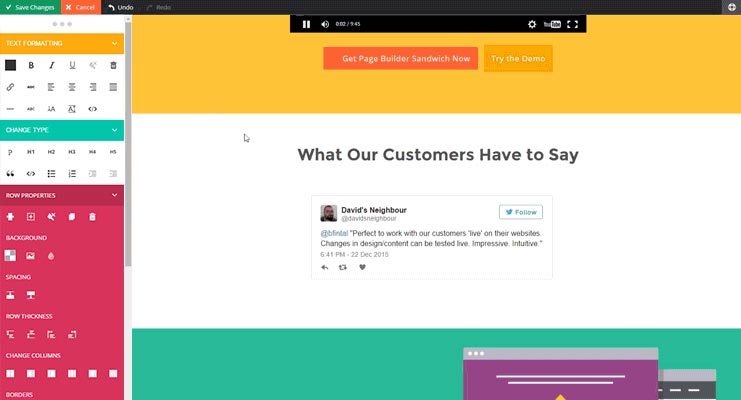
    In the previous versions of PBS, we wanted everything to be in the form of buttons. Why? Because buttons are easy to use. You just… click on them. On the older versions of the inspector (the sidebar on the image above), clicking a button would increase a value, then shift+clicking a button would decrease it. That sounds easy enough. But with the addition of carousels, tabs, maps and other new elements and features, all those buttons became a mash of different icons with different designs, and kinda started looking more like hieroglyphics than a cool interface. This wasn’t a problem for seasoned users, but it’s quite intimidating to look at if you’re new to PBS.

    Next, there were a couple of problems showing up on the inspector. The original idea was to make everything simple and available inside the inspector. And by everything, I meant everything – from turning text into headings, to changing background colors, font colors, you name it. In its current state however, the inspector now contains a lot of options that will have you use the mouse wheel to scroll up and down consistently. Quite different from the inspector I formerly hoped to make for users.

    Lastly, we recently introduced shortcode mapping for your favorite plugins. This feature required us to create text fields, number sliders, checkboxes, and additional new option types needed to make your shortcode editing experience more pleasant. Initially, it was a good idea, and yes, it made manipulating shortcodes easier for you. But again, this feature deviated from our “buttons only” interface. In retrospect, it was really impossible to use only buttons for changing shortcode attributes. Now, in the latest version, we ended up with 2 types of controls: the buttons and the shortcode fields.

    There are a few more reasons that made us decide that our interface was no longer effected (or suited for our needs), but the above points are the major ones. One thing was always for sure though: we knew that had to update the interface.

    Defining How A Page Builder Should Ideally Work

    Instead of jumping in and changing things right away, we took a hundred steps back to take a look at the whole page builder experience. We wanted to bring in a new life to the interface. Truthfully, we didn’t want to keep rebuilding it year after year. It’s  exhausting and definitely does not bring significant help to the WordPress community. This time, we decided to do things slowly and carefully. We’ve studied every corner of Page Builder Sandwich and what makes it a good page builder, and finally  fleshed out the whole editing experience into a few core concepts.

    Essential Concept #1: Typing Directly in your Content to Edit Stuff

    One of the main reasons for installing a page builder is to get out from the constraints of the backend text editor of WordPress. It’s not that the backend editor isn’t good, but when creating your webpages, it doesn’t immediately show you what your webpage would look like to your site visitors, nor does it allow you to layout your content outside a one-column layout. You can only see your text there and some images, but none of the more elaborate stuff (e.g. contact forms). You can add shortcodes, yes, but they won’t show up in their rendered form*.

    * There are plugins being made by others to address this such as Shortcake UI, but that’s beside the point.

    That’s where front end page builders come in. They bring the editing experience out from the backend, and into the front end, with you editing your site the way your visitors would really see it. As Pippin would phrase it: What you see is what you get (WYSIWYG).

    Another good thing about being a frontend editor is that it allows you to edit your text directly. Typing in headings and paragraphs gives the ease of using the usual word processor in website building. Buttons and tab labels should be also changeable by simply clicking on them and typing.

    This is the area most other page builders don’t deliver well on. Most of them force you to type inside a text field to edit everything. Again, this shouldn’t be the case in real frontend page builders. Typing and editing text directly has been a strong point of Page Builder Sandwich since version 2, and we made sure that this is still upheld in version 3.

    Essential Concept #2: Utilizing the Mouse for Quick Tweaks

    The mouse is a powerful tool that often gets neglected in page builders. Often times, page builders use it to allow people to drag stuff around and drop them in different locations, or to click on buttons or input fields. While this is okay, there is so much more that you can do with the mouse in terms of page building.

    For one, there is awesome visual feedback in using the mouse as the tool in editing the page, especially in adjust visual properties like margins, paddings and sizes. Now, tweaking your elements becomes a natural experience.

    In PBS version 3, you will be able to adjust a number of things using your mouse. You can adjust margins/spacings between individual elements, the paddings within your columns, as well as the sizes of images, icons and maps. We’ve also replaced buttons that allow you to change numerical values into sliders.

    Essential Concept #3: Text Should be Easy to Style

    If you take a step back from your monitor, you’ll notice that most of what you add in your webpages are text content. Yes, we do have images and icons in there to accompany them – and lately we tend to add in larger images in our sites. But the majority of the important content are all text: headings, bullet lists, paragraphs, quotes, etc. Alongside it is how we style our text to suit our designs. We either change their sizes and colors, or make it bold or italicized. This is for our content more readable, relevant, and attractive to our respective readers.

    Because we style the text often, buttons which allows us to change styles should be very accessible. They shouldn’t be tucked inside a pop up box that we need to open up first. Most page builders suffer from this sickness. In order for their user interface to be labeled as ‘clutter-free’, even the most-used options are shielded in plain view.

    To solve this, we took a look at the most commonly used word processors. We noticed that they usually have a row with a ton of buttons near the top of the screen used to format text and copied the same layout for version 3. We now have a row of all the text styling buttons always present on the top of your screen. This makes styling really quick and close to your second nature in text editing.

    Essential Concept #4: Advanced Styling Options Should be Flexible Yet Easy to Understand

    The bottom line with a page builder is that it should allow people to create stunning designs easily. This means that we should provide a lot of different settings and options without compromising a difficult learning curve. Being able to adjust margins, paddings and styling text are great, but those can only do so much. You’ll need much more elaborate options to get the job done, options like background images, patterns, borders, fixed backgrounds and more. Stacking in all of those different settings can get a little overwhelming, so we’ve simplified some of them and organized them in categories to make things friendlier in version 3.

    Essential Concept #5: Shortcode Support

    Lastly, let’s not forget that our page builder stands on top of WordPress. We should embrace the platform and its features and not restrict them or deviate from them. One huge feature that WordPress provides are shortcodes. It doesn’t mean that the whole content should be composed of shortcodes – that would be messy – but instead we should just be compatible with them. A lot of plugins and themes use shortcodes, and it would be such a loss if ignored them all. In fact, shortcodes gives the users utmost flexibility when it comes to creating pages.

    We introduced a few weeks ago our shortcode mapping system, and because of it we have mapped hundreds of shortcodes from hundreds of plugins. We have prioritized the most popular plugins found in the WordPress plugin directory, so chances are you’ll encounter them in your own sites. This has only strengthened in version 3, and we will continue to improve this on the way forward.

    Conclusion

    We’ve taken all those essential properties above and built them into Page Builder Sandwich version 3. It’s the best page builder we have built for WordPress so far. It’s more intuitive and more natural to use, it performs faster, easier to use, and more friendly than ever.

    If you have any thoughts on an essential page builder feature, let us know by commenting it below.

  • A Tour of Page Builder Sandwich Version 3

    a-tour-of-page-builder-sandwich-version-3

    We’ve changed a lot things in Page Builder Sandwich version 3. If you’ve been using Page Builder Sandwich for quite some time, you’ll notice that the changes are quite drastic. There is a big difference between the version 1, version 2, and the current version. In the previous versions, everything was located in the inspector on the side. We’ve since gone through and split its components into different, more logical partitions. We have listed reasons for this upgrade in the previous blog post.

    Current users may find the changes cumbersome at first. Give it a few minutes of trials, and we trust that you’ll feel right at home. We’ve carefully designed each aspect of the interface for your second nature in word processors to function in website building.

    Watch The Tour of The New Interface

  • Shortcode Mapper Plugin Feature: The Events Calendar by Modern Tribe

    shortcode-mapper-plugin-feature-the-events-calendar-by-modern-tribePlugins of the same category, but with respective features, are developed and enhanced every day. This gave birth to the variety of WordPress-powered websites – and later on, websites catering to several functions. For instance, there is a number of plugins which enables a developer and/or user to create, schedule, invite an interested person to an event.

    The Events Calendar is the events calendar you’ll need

    There are a lot of available events calendar in the WordPress market. So how do you choose? There are recommendation blogs, plugin face-off blogs, and of course testimonials from different users. All of these have one thing in common: they include The Events Calendar by Modern Tribe in their list.

    screenshot-2016-10-05-20-00-09
    An example of a minimal event post of The Events Calendar

    What’s with The Events Calendar, anyway?

    The Events Calendar by Modern Tribe is the frontline plugin in the said category. It provides professional quality of event posts. It has a pretty simple interface, with the title at the top, date and time, the price if applicable, a featured image and or map, and additional details about the event. You can view all your events by date, keyword, and location if Pro.

    You can do much more with The Events Calendars Pro and its official add-ons:

    The Events Calendar PRO

    • Recurring events
    • Week view
    • Photo view
    • Location search
    • Map view
    • Venue and organizer view
    • Advanced widgets
    • Additional fields

    The Events Calendar ADD-ONs

    • RSVP tickets
    • Event ticket plus via WooCommerce, Shopp, WPeCommerce, Easy Digital Downloads)
    • Community Events
    • Community Tickets
    • Filter Bar
    • Facebook Events
    • iCal Importer
    • Eventbrite Tickets

    Integrating it with Page Builder Sandwich makes it even cooler

    screenshot-2016-10-04-17-46-04Recent posts were made to highlight the benefits of using PBS and its Shortcode Mapper. This is to make sure that you guys are taking advantage of the latest innovation that the Sandwich Team can develop plus notify the plugin developers that their creation gave birth to another awesome feature.

    For the case of The Events Calendar plugin, we came up with 2 mind blowing reasons as to why the combination needs to exist:

    1.      Reviewed by WordPress plugin royalties

    The Modern Tribe assured their customers that the product and service they offered was of quality. Creator of Easy Digital Downloads, Pippin Williamson gave his inputs about The Events Calendar. Alongside him was Mark Jaquith, one of the leading WordPress developers, who made sure that the plugin was secure.

    Page Builder Sandwich was also reviewed recently by Pippin, together with the other established and rising page builders in the market. In his in-depth critique, he concluded that indeed, PBS is one of the most powerful drag-and-drop page builders. He highlighted that only  Page Builder Sandwich was able to create a functioning Shortcode Mapper.

    2.      Shortcode options: from backend to frontend editing

    By default, the plugin’s shortcode options can be accessed through the backend admin panel. Then, the same process of backend plugins takes place: go to the backend editor, input the wanted changes and then save. Only when the refresh button is clicked would the edited content be seen. All-in-all, that’s 4 steps.

    But that long procedure has been turned into a real time frontend editing by Page Builder Sandwich – in just 2 steps:

    1. Instead of going to the backend panel to access the shortcode options, click on the Shortcode Mapper and select on The Events Calendar. You’d be redirected to a pop-up window as seen below. Click on The Events Calendar.
      screenshot-2016-10-04-17-43-37
      View of The Events Calendar in the Page Builder Sandwich Shortcode Mapper
    2. screenshot-2016-10-05-19-57-11
      Close look at The Events Calendar Shortcode Properties
      The Inspector on the left displays the initial properties of the shortcode. Clicking on the “Open Editor” button, the shortcode controls displayed at the backend can now be accessed on the frontend via a pop-up window.
    screenshot-2016-10-06-13-25-04
    See? The Events Calendar looks like you’re just making an event post.

    screenshot-2016-10-06-14-37-52

    There are a lot of benefits, right?

    With the integration of a page builder that doesn’t lock you in and leaves shortcode mess, and the most popular events calendar, your workflow would not only smoothen but also increase in productivity. Additionally, you can look into what Modern Tribe offers: the bundle of plugins that go with The Events Calendar.

    So far, The Events Calendar plugin by Modern Tribe was the only one mapped in our Shortcode Mapper. This doesn’t mean however that the mapping stops there. Just comment what plugin of Modern Tribe that you would like to see in our Shortcode Mapper.

  • Where Things Get a Little Technical: How We Made Our Version of Shortcode Mapping Happen

    How-We-Made-Our-Version-Of-Shortcode-Mapping-Happen-2On the previous article, we’ve discussed the basics of shortcode mapping and how you can get access to its sweet benefits. We’ve decided to split the article featuring the Page Builder Sandwich version of Shortcode Mapping, as the following write-up may get a little more technical.

    Below are more in-depth descriptions of the inner workings of our shortcode mapping feature, and how we got it to work.

    An Automated Process

    In order to decide which plugins to include in the shortcode mapper, we built an automated script that will gather the top plugins in the WordPress plugin directory based on the following criteria:

    • Within the 1,000 popular, top-rated and updated plugins,With at least 4,000 active installs,
    • With at least 4,000 active installs,
    • With at least 20 ratings, and;
    • With at least a 3-star average rating

    We run this query daily against the WordPress plugin directory. These filters ensure that we get a list of good quality plugins that a lot of people use. During the time this was written, this criteria resulted in 800 plugins. That’s a lot. Like, a lot.

    Some of the most popular plugins detected for shortcode mapping.
    Some of the most popular plugins detected for shortcode mapping.

    We then run a series of automated checks on each plugin’s source code to find out whether it contains any shortcodes, and then we try and find all of those shortcodes, including all their attributes. Crunching the data, this resulted in over 2,000 shortcodes. Double woah. Detected shortcodes are then inputted into the shortcode mapping database for manual inspection.

    By the end of this process, we would end up with a huge list of plugins, and what their possible shortcodes are. It’s now a matter of cleaning this data up to make sure everything’s correct.

    A Manual Process

    This is probably the hardest part of the whole mapping system. Plugin code comes in different forms and sizes, not all shortcodes are automatically detected by our scripts. Even though the WordPress Codex says to use the function `shortcode_atts` to filter a shortcode’s attributes, this is only a recommendation and not everyone does it. There is also no sure-fire way to check the innards of a shortcode when a plugin is installed.

    To so make sure that we get all the shortcodes and their attributes right, we created a front end area dedicated to editing shortcodes and attributes and is built using AngularJS and Bootstrap.

    Bootstrap & AngularJS interface for fixing up all the mapped shortcodes.
    Bootstrap & AngularJS interface for fixing up all the mapped shortcodes.

    We’ll have to manually go through each and every plugin and check their shortcode documentation and make sure that all the data we have is correct.

    Even though this is painstakingly tedious, there are some bright sides to having an automated process:

    • According to our early stats, only around 1 in every 2 plugins have shortcodes.
    • Half of the detected shortcodes have no attributes (but a portion of this may be false positives)
    • By getting only good quality plugins, most likely they have shortcode documentation

    When all of a plugin’s shortcodes have been checked, only then will the server start distributing the shortcode mappings of that plugin to the users.

    A Rest API Call

    The last piece of the puzzle is the plugin itself. The concept here is simple: find out what plugins are active, what theme the site is using and what shortcodes are available, then ask the shortcode mapping database whether it has mappings. For this we created a custom WP REST API endpoint that all clients ping to get their latest shortcode mappings.

    The Future: Crowdsourcing

    Manually checking each plugin requires a lot of time and effort. Once the shortcode mapping platform is stable, we plan on opening up shortcode mapping to everyone. This means that everyone can help out in adding shortcodes.

    You might be thinking, “why would I help map out shortcodes? What’s in it for me?” Well, a few things come into mind on why people would want to help out:

    1. If you have created a plugin, and we haven’t caught it yet because of the criteria above, (and it’s in the WordPress plugin directory) then you can add the mappings yourself. Your plugin would become fully supported by PBS!
    2. Since we’ll only be dealing with those in the WordPress plugin directory in the automated process, premium plugin & theme authors won’t become included. So if you have one, then you can also your shortcode mappings for those.
    3. And for the non-plugin creators, we can reward those who help. To make shortcode mapping an enticing endeavor, we can reward happy helpers with a personal license, or an upgrade to a premium license of PBS!

    Sign up to Our Newsletter

    The shortcode mapping functionality will be out for our customers tentatively on August 12  August 15  August 16, 2016. Not all shortcodes will be mapped by this time (our estimate is maybe 100 plugins), but mapping will be continuously done and customers will get them as soon as new ones roll out.

    Sign up to our newsletter to get news on shortcode mapping, when we’ll release it, and when we open shortcode mapping to the public!

  • Adding Stylish Maps to Your Page Is an Interactive Experience

    Adding-Stylish-Maps-to-your-Page-is-an-Interactive-Experience-2You can now place maps in your page designs using Page Builder Sandwich!

    It’s a weird thing to be excited about maps. You grab the Google Map URL then embed it. Or maybe grab a map plugin online and put in a shortcode. Or maybe your other page builder already has one and you can add one any time you want. But the reason why we’re excited is that we have brought adding maps to a whole new level.

    Here’s a preview:

    The Old Boring Way of Adding A Map

    Here’s how you add a map with your typical page builder:

    1. You drag a new map element,
    2. You enter the latitude and longitude in the fields,
    3. You enter in other values in the fields like map height, map width, tick the road style checkbox, etc,
    4. Hit preview and check what it looks like and decide that you need to change something to make it look cooler,
    5. Go back to the page builder and change the values, then repeat step 4 above.

    The Page Builder Sandwich Way of Adding A Map

    Maps in websites are interactive – you can pan around, zoom in and out the map. So we thought, why not remove all the guess work and just allow people to interact with the map directly while building your page?

    Here’s how you add a map with Page Builder Sandwich:

    1. You add a map element,
    2. You type in the latitude and longitude or address where you want the map to center on,
    3. You move the map around and zoom in or out of it to get your desired look,
    4. Add some cool colors to your maps to fit your style,
    5. Hit save.

    Our way is much more fun and intuitive. You essentially interact with the map the way you would with a normal Google Map.

    Colored Maps or Style them with SnazzyMaps

    An awesome feature we’ve placed in is the ability to tint and color your maps, and it’s super easy to do. (This is for the premium version only). If you want to colorize your map, just click on our color picker and choose a color, and your map would immediately change.

    Here’s one that we’ve tinted pink:

    Page Builder Sandwich also supports more elaborate color schemes via SnazzyMaps. They have a huge list of user-contributed color schemes, and they let you create your own if you want more control over the colors.

    Just find the color scheme that you like, then grab the code and paste into Page Builder Sandwich. The color scheme will get applied to your map right away.

    Here’s a cool color scheme called papuportal dark from SnazzyMaps:

    Put Maps Wherever You Like

    There are a lot more cool stuff that you can do with maps – like add them in full-width rows for a more dramatic effect. You can also add them inside a carousel if you like, or inside tabs (an upcoming feature).

    If you don’t have Page Builder Sandwich yet, you can try out the premium version by clicking on the “Live Demo” link above.