
 We’ve been getting quite a few inquiries the past week about Pre-Design Sections (and by extension, the PBS Templates), what they are, and how they can be accessed.
So in this article, we’ll be teaching you how to not only access them, but also how to maximize these features of Page Builder Sandwich: By customizing them and making them your own.
Accessing the Pre-Designed Sections
If you aren’t familiar yet, all you have to do to access the Pre-Designed sections is to hover your mouse onto the left side of your screen, and access the Elements Inspector. This is the sidebar that lets you drag and drop elements directly onto your content area.

Once it’s accessed, simply scroll down to the bottom and select Pre-Designed Sections. A library of the sections will pop up. Select one from the collection, drag and drop, and it’ll show up on your content area, like so:
 From here, you can move the elements within the section around, or move the entire thing and adjust its position. And there you have it! You’ve selected a Pre-Designed Section from Page Builder Sandwich.
Now it’s time to add in your own twist: By customizing and tweaking with the elements’ settings within the selected section.
Customizing the Pre-Designed Sections
Each element’s setting within any one Pre-Designed section can be edited and customized according to your website’s needs and your personal taste.
This means everything included in your selected Pre-Designed section – like text, colors, images, buttons, everything – can be edited and tinkered with by you.
예를 들어, 아래의 기본 사전 디자인된 섹션에 있는 기본 청록색 틴트와 밀밭 이미지가 마음에 들지 않는다면…
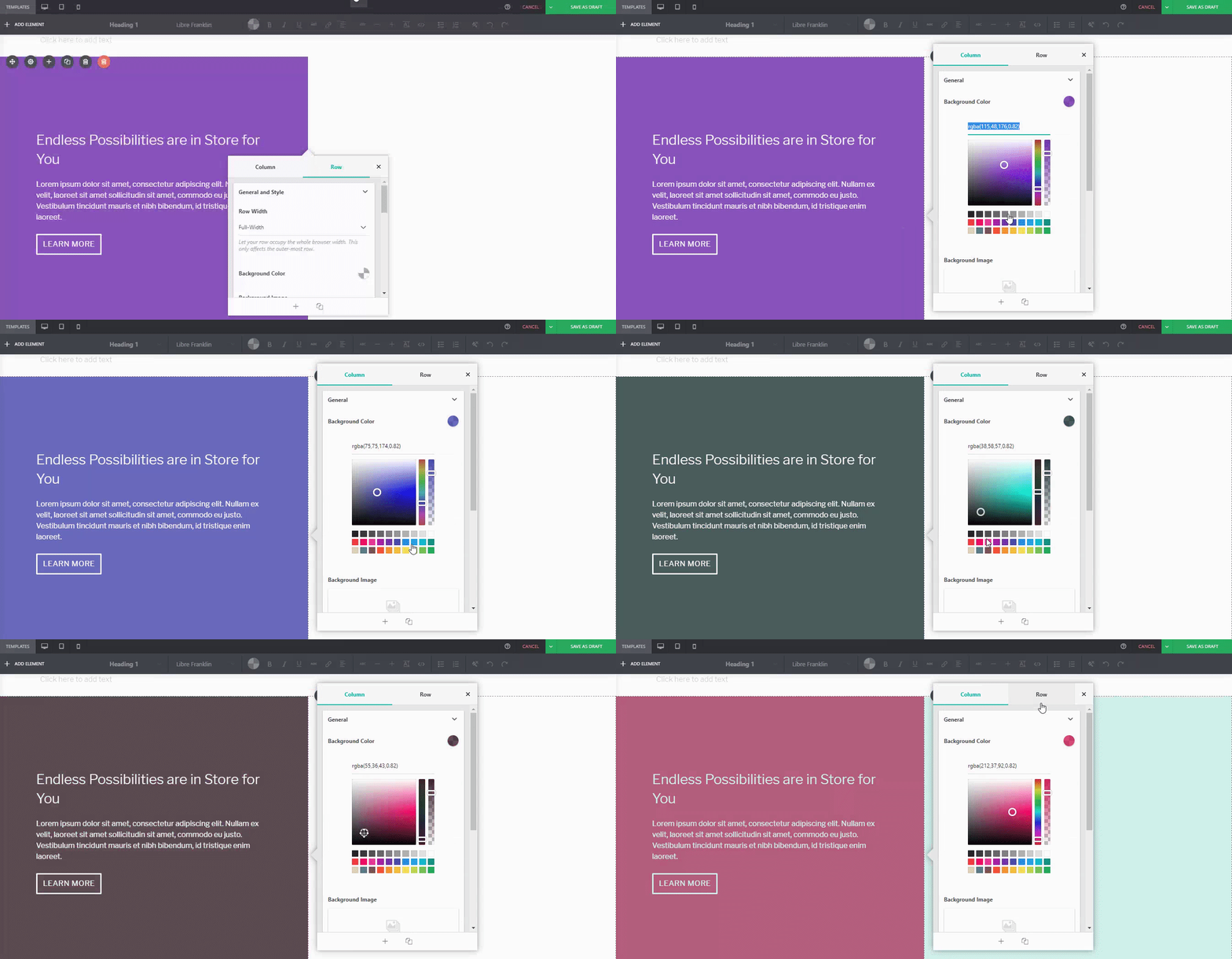
 You can adjust it. For instance, if I wanted a different background tint on the left:
 Or if you wanted to replace the image of the wheat field on the right:
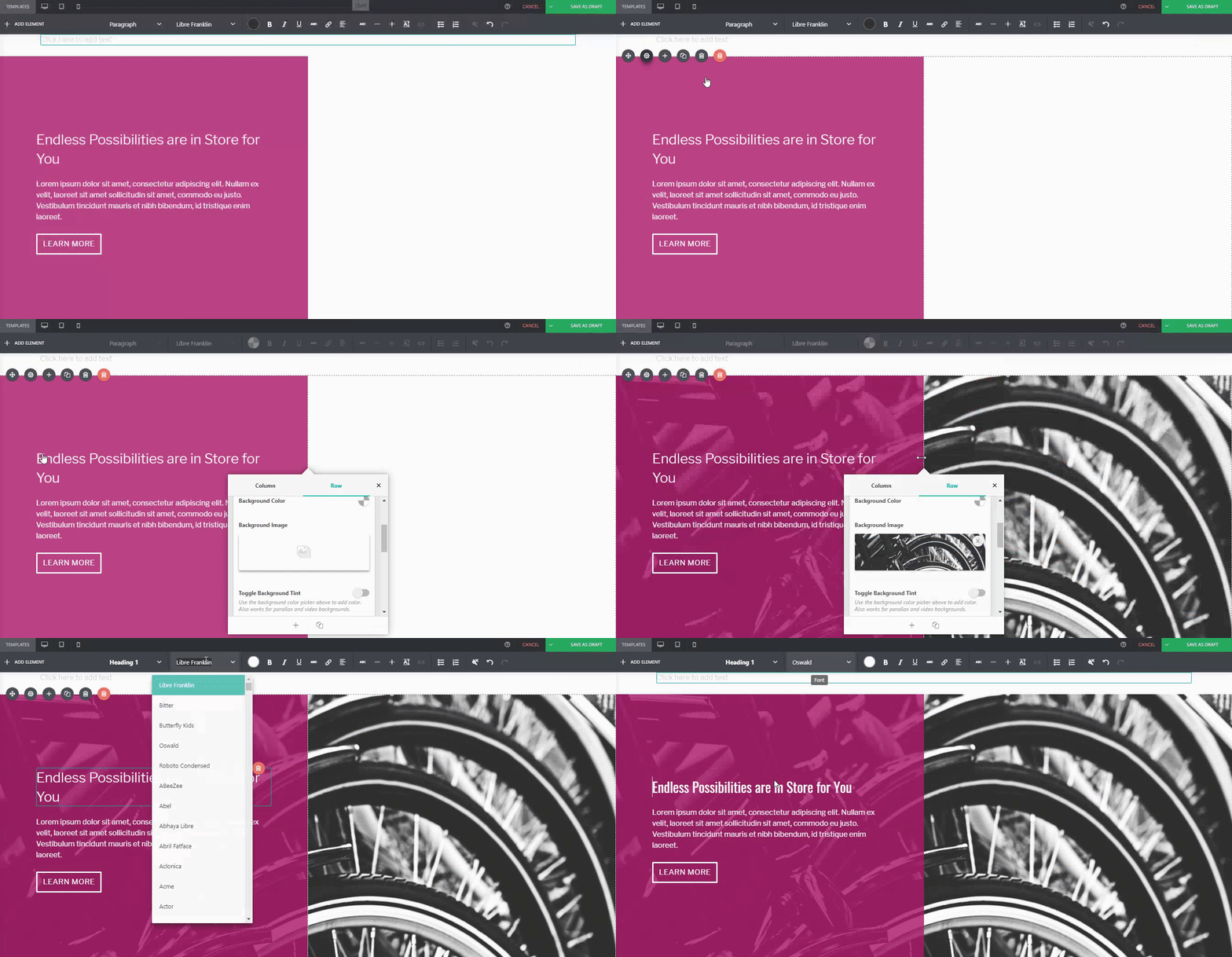
Or even change the button style, margin, padding, and font:
 …You can.
비교를 위해:
Default PBS Pre-Designed Section

The same Pre-Designed Section, completely tweaked and customized. Notice the different font, color scheme, button style, photo, and margin width. You can actually take this further, and let your imagination run wild.
Here are a few more examples on how you can spice up our Pre-Designed Sections
Default Pre-Designed Section from Sandwich
The same Pre-Designed Section, customized


You can do it with our Full-Page Templates, too:
Default Template from Sandwich
The same Template, customized


Conclusion
Page Builder Sandwich의 사전 디자인된 섹션에는 생각하시는 것보다 더 많은 기능이 있습니다.
Tweak and customize them to make them completely your own, or even use them as a starting point for when you don’t want to design your page from the ground up.
Page Builder Sandwich는 디자인 시간을 단축할 수 있도록 돕기 위해 존재한다는 점을 기억하세요. 사전 디자인된 섹션과 전체 페이지 템플릿을 최대한 활용하면 바로 그렇게 할 수 있습니다.
Design in less time!
Get access to Sandwich’s Pre-Designed Sections, Templates, and a whole lot more.