ደራሲ፥ Neil Lock

  • በፊት ገጽዎ የላይኛው ክፍል ላይ ምን ማስቀመጥ እንዳለብዎ – ለ”Above the Fold” ይዘት ጠቃሚ ምክሮች

    Tips-For-“Above-the-Fold”-ContentWhat you put in the top of your front page has a huge impact on the success or failure of your website. Put the wrong thing in, and you’ll probably see your visitors quickly navigating away from your site. Put the right content there and you may see your sales go up.

    This article isn’t an all-in-one guide for creating above the fold content, nor is about an all-encompassing rule on what you should put in. Rather, I will give you a few tips, recommendations and a little bit of helpful research about this topic.

    በቀጥታ ወደ ጉዳዩ ከመግባታችን በፊት፣ መጀመሪያ የፊት ገጽዎ የላይኛው ክፍል ምን ተብሎ እንደሚጠራ ማወቅ ጥሩ ነው። ከጣቢያዎ-የላይኛው-ክፍል የተሻለ ስም አለው።

    file000153814713_

    “ከእጥፋቱ በላይ” (Above the Fold)

    ከእጥፋቱ በላይ (Above the Fold) ይባላል። ለምን? ምክንያቱም በቀደሙት ጊዜያት የሰው ልጅ ጋዜጣ የሚባሉ ነገሮች በነበሩት ወቅት፣ የላይኛው ክፍል ብቻ ወዲያውኑ እንዲታይ ብዙውን ጊዜ ለሁለት ይታጠፉ ነበር። ያ የላይኛው ክፍል ወይም “ከእጥፋቱ በላይ” ያለው ክፍል የቀኑን በጣም አስፈላጊ ርዕሰ ዜና/ዜናዎች የያዘ ሲሆን፣ ሲዘረጉት ደግሞ የተቀሩትን ብዙም አስፈላጊ ያልሆኑ ርዕሰ ዜናዎችን ያያሉ። በተመሳሳይ በድር ጣቢያዎች ውስጥ የጣቢያዎ የላይኛው ክፍል ሰዎች መጀመሪያ የሚያዩት ነገር ነው፤ ከዚያም ወደ ታች ሲያንሸራትቱ ልክ ጋዜጣ እንደ መዘርጋት የቀረውን የጣቢያውን ክፍል ያያሉ።

    የጋዜጣውን ምሳሌ እንደያዝን፣ በመንገድ ላይ እየተጓዙ አንድ የጋዜጣ ሻጭ አዩ እንበል። ጋዜጣውን ሲያዩ ዋናው ርዕስ ሳቢ ከሆነ፣ የቀረውን ክፍል ለማየት ጋዜጣውን ሊገዙት ይችላሉ። ይህ በድር ጣቢያዎች ላይም በመሠረቱ ተመሳሳይ ነው፤ ጎብኚዎች በጣቢያዎ በኩል ቢያልፉ እና ከእጥፋቱ በላይ ያለውን ይዘትዎን ሳቢ ሆኖ ካገኙት፣ ሊሳቡ እና ተጨማሪ ለማየት ወደ ታች ሊያንሸራትቱ ወይም የተቀረውን የጣቢያዎን ክፍል ሊመለከቱ ይችላሉ።

    የኒልሰን ጥናት

    Earlier I said that your above the fold content may make or break your site. Nielsen Normal Group has written a few research articles about this across the years. I’ll quote the summary of their article The Fold Manifesto: Why the Page Fold Still Matters

    The average difference in how users treat info above vs. below the fold is 84%.

    If you just got confused about the wording of the quote, I did too at the start. Let me clarify: That study doesn’t mean that 84% of people do not scroll down, on the other hand I’ve seen other research say that most people do scroll down to the bottom of the page. It also doesn’t mean that the lower part isn’t important. Instead it means that the behavior of your visitors in your site is largely impacted by your content above the fold.

    የድር ጣቢያ የላይኛው ክፍል መጀመሪያ የሚያዩት ነገር ስለሆነ ይህ ምክንያታዊ ነው።

    ስለዚህ የፊት ገጽዎ ከእጥፋቱ በላይ ያለው ይዘት ምን ያህል አስፈላጊ እንደሆነ ካወቁ፣ በጣቢያዎ አናት ላይ ምን ማስቀመጥ አለብዎት?

    ቀጥታ ወደ ዋናው ነጥብ ይሂዱ

    ጣቢያዎ ስለ ምን እንደሆነ ወዲያውኑ ያስቀምጡ። የፊት ገጽዎ እና ከእጥፋቱ በላይ ያለው ቦታ የመላው ጣቢያዎ የሕይወት እስትንፋስ ናቸው። ጎብኚዎችዎ ግራ ከተጋቡ፣ ወዲያውኑ ዞር ብለው ትሩን ይዘጋሉ። አዲስ የመጽሐፍ ደራሲ ከሆኑ፣ ደራሲ መሆንዎን ይጻፉ እና አዲሱን መጽሐፍዎን ያሳዩ። የሠርግ አዘጋጅ ከሆኑ፣ ለጎብኚዎ የማይረሳ ምርጥ ሠርግ የሚያዘጋጁ የሠርግ አዘጋጅ መሆንዎን ይጻፉ። ወይም ለአነስተኛ ሆቴልዎ ጣቢያ እየሠሩ ከሆነ፣ በከተማው ውስጥ ምርጡ አልጋና ቁርስ (bed and breakfast) የሚያቀርቡ መሆንዎን ይጻፉ። (እነዚህን ምሳሌዎች ከዚህ በታች በይበልጥ እጠቀምባቸዋለሁ።)

    ጎብኚዎችዎ ጣቢያው ስለ ምን እንደሆነ መገመት የለባቸውም። ወዲያውኑ መረዳት አለባቸው፣ ከዚያ ብቻ ነው ተጨማሪ ዝርዝሮችን ለማየት ወደ ታች የሚያንሸራትቱት።

    ጎብኚዎችዎን ሆን ብለው ያሳትፉ

    ቀጥሎ ስለ ድር ጣቢያዎ ትክክለኛ ዓላማ ማሰብ አለብዎት። ድር ጣቢያዎን በመጀመሪያ ደረጃ ያቋቋሙበት ምክንያት ምንድን ነው? ምክንያቱ ምንም ይሁን ምን፣ ያንን ደግሞ ከእጥፋቱ በላይ ማስቀመጥ አለብዎት።

    ከላይ የጠቀስኳቸውን ጥቂት ምሳሌዎች እንውሰድ። ለአዲስ የመጽሐፍ ደራሲ፣ የበለጠ ተደራሽነትን ይፈልጉ ይሆናል። ነፃ ኢ-መጽሐፍ ካለዎት፣ ጎብኚዎችዎ እንዲያወርዱት አዝራር ማስቀመጥ ይችላሉ። ለሠርግ አዘጋጅ፣ ሰዎች ስለ አገልግሎቶችዎ እንዲያነጋግሩዎት ይፈልጋሉ፤ ስልክ ቁጥርዎን ወይም የመገናኛ ቅጽ ያስገቡ። ወይም ለአነስተኛ ሆቴል፣ ከስልክ ቁጥርዎ ጋር የቦታ ማስያዣ ቅጽ ያስገቡ።

    ለPage Builder Sandwich፣ ሰዎች ፕለጊኑን በይበልጥ እንዲያውቁት እና በመጨረሻም ደንበኛ እንዲሆኑ እፈልጋለሁ። ስለዚህ ጎብኚዎች ማሳያውን ወዲያውኑ እንዲሞክሩ የሚያስችል አዝራር እና ፕለጊኑን ለመግዛት ሌላ አዝራር እዚያ አለኝ።

    ከእጥፋቱ በላይ ያለውን ክፍል መንደፍ

    አሁን ምን ማስቀመጥ እንዳለብን ስላወቅን፣ ስለ ዲዛይኑ የምንወስንበት ጊዜ ነው። እኔ በግሌ በንጽሕና የተከፋፈለ ይዘትን እመርጣለሁ፣ ስለዚህም በፊተኛ ገጻችን ላይ ድፍን የጀርባ ቀለም ተጠቅመናል። ነገር ግን ከእጥፋቱ በላይ ያለውን ይዘትዎን ይበልጥ ሕያው ለማድረግ በምስል ወይም በቪዲዮ ማጀብም ጥሩ ሐሳብ ነው።
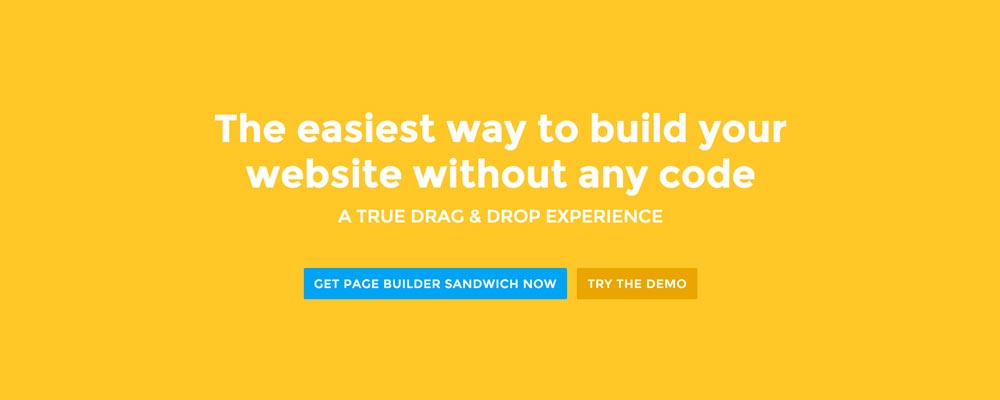
    Screen-Shot-2016-01-29-at-12.11.19-AM_Here’re a few examples of what you can do about your front page.

    Add a background image. A large background image behind your large statement is a great eye-catcher and can further encourage visitor engagement. For new book author, maybe adding a background image illustrating the setting of his free ebook would entice people more.

    Add an introduction video. Admit it, people can be lazy, especially when it comes to reading. So if your site is a bit complicated, it might be a good idea to add a short video that introduces your site/product quickly. For the wedding organizer, then this can be a video of their latest wedding. Or for our site for example, we can add in a quick intro about the features of our plugin.

    Add a video background. This is a bit of a trend nowadays, but I find it appealing at times. If this suits your taste, then this might be a good idea.. I know PayPal had a video background before in their site. For the small hotel, you can put in a stationary video of a scenic area of your hotel as the backdrop.

    ማጠቃለያ

    ለፊት ገጽዎ ከእጥፋቱ በላይ ያለ ይዘት መፍጠር ከባድ አይደለም፣ ነገር ግን በትክክል ለመሥራት የተወሰነ ማሰብ እና መሞከርን ይጠይቃል። አስቀድመው ጣቢያ ካለዎት እና ያንን አዘጋጅተው የጨረሱ ቢሆንም፣ ነገር ግን በGoogle Analyticsዎ ውስጥ ከፍተኛ የቦውንስ ሬት (bounce rate) ካለዎት፣ ከላይ ባሉት ምክሮች ከእጥፋቱ በላይ ያለውን ይዘትዎን እንደገና እንዲያስቡበት አበረታታዎታለሁ።

    If you have tips on creating above the fold content, kindly share them in the comments!


    Page Builder Sandwich can Help You Design Your Front Page & Above The Fold Content

    Page Builder Sandwich is a WordPress plugin that allows you to create any design you want without writing any piece of code.

    ስለ Page Builder Sandwich የበለጠ ይወቁ

  • Page Builder Sandwich Lite አሁን በWordPress Plugin Repo ውስጥ ይገኛል

    PBS-Lite-Is-Now-Available-In-The-WP-Plugin-RepoNow you can download the Lite version of Page Builder Sandwich from the WordPress.org plugin repository!

    የላይት (Lite) እትሙ የፕሪሚየም ፕለጊኑ የቀነሰ ስሪት ነው፣ ሆኖም ግን አሁንም ሙሉ በሙሉ ጥቅም ላይ መዋል የሚችል ነው። በLite እትም ውስጥ የሚገኙ የባህሪያት እና የመሳሪያዎች ዝርዝር እነሆ፡

    • የቀጥታ የፊት ገጽ (frontend) አርትዖት
    • የብቅ-ባዮች ጣጣ ሳይኖር በቀጥታ ጠቅ በማድረግ እና በመተየብ ማረም
    • የጽሑፍ ቅርጸት ማስተካከያ መሳሪያዎች፡ ቀለሞች፣ ደማቅ፣ ሰያፍ፣ ከስር ማስመር፣ አግድም መስመር፣ አሰላለፎች፣ ወዘተ፣ በመሰረቱ በጀርባ TinyMCE አርታዒ ውስጥ ሊያደርጉት የሚችሉት ነገር በሙሉ።
    • የ WordPress ሚዲያ አቀናባሪን በመጠቀም ምስሎች እና የምስል አያያዝ
    • የ WordPress አገናኝ መፍጠሪያ ንግግር ሳጥንን በመጠቀም አገናኝ መፍጠር
    • የብሎክ አካላት፡ ርዕሶች፣ ጥቅሶች፣ ነጥብ እና ቁጥር ያላቸው ዝርዝሮች
    • የቀጥታ አጭር ኮድ (shortcode) ማሳያ እና አርትዖት፣ ከሁሉም የሚገኙ አጫጭር ኮዶች ሙሉ ዝርዝር ጋር
    • በተደራራቢ ረድፎች & አምዶች አቀማመጥ ማዘጋጀት
    • የረድፍ & አምድ ባህሪያት፡ የጀርባ ቀለም፣ ህዳጎች፣ ክፍተቶች እና ወሰኖች
    • በትክክል የሚሰራ ቀልብስ/እንደገና አድርግ (undo/redo)
    • እና ሌሎችም በርካታ!

    የLite ስሪቱን አሁን ያውርዱ

    የፕለጊኑን ገጽ ካዩት እና ፕለጊኑ ለምን አዲስ እንዳልሆነ እያሰቡ ከሆነ፣ ይህ የሆነበት ምክንያት ይህ የፕለጊኑ የመጀመሪያ እትም ስላልሆነ ነው። ከአንድ ዓመት በፊት፣ የጀርባ (backend) ገጽ ገንቢ ነበር፣ ነገር ግን አልወደድኩትም እና ከወራት ማሰላሰልና ሃሳብ ማፍለቅ በኋላ፣ ሙሉ በሙሉ የተለየ አቅጣጫ ወሰድኩ፤ አሁን ደግሞ በግሌ ተጠቅሜ የምደሰትበት ግሩም የፊት ገጽ (frontend) ገጽ ገንቢ ሆኗል።

    ይህ ከእኔ ገጽታ (Theme) ጋር ይሰራል?

    በቴክኒካዊ መልኩ ይህ ከማንኛውም እና ከሁሉም ገጽታዎች ጋር መስራት አለበት። ከተጠቃሚዎቻችን እና ደንበኞቻችን ጋር በመሆን የ Page Builder Sandwichን ከብዙ ገጽታዎች ጋር በተሳካ ሁኔታ ተጠቅመናል፣ ከነዚህም መካከል ከ WordPress.org ገጽታ ማከማቻ፣ Genesis Themes፣ StudioPress Themes፣ Elegant Themes እና ከ ThemeForest የተገኙ ገጽታዎች ይገኙበታል። ከእርስዎ ገጽታ ጋር የማይሰራ ከሆነ፣ እባክዎ ያሳውቁን እና እናስተካክለዋለን።

    ይህ አሁን ካለኝ ይዘት ጋር ይሰራል?

    Page Builder Sandwich አሁን ካለዎት ይዘት ጋር በጥሩ ሁኔታ መስራት አለበት። ይዘትዎ ወዲያውኑ በቅድመ ገጽ (frontend) ላይ ሊስተካከል የሚችል መሆን አለበት!

    ይዘትዎ በሌሎች አጫጭር ኮዶች ውስጥ በተደራረቡ አጫጭር ኮዶች (ለምሳሌ የአምድ አጫጭር ኮዶችን እየተጠቀሙ ከሆነ) የተሞላ ከሆነ፣ በመጀመሪያ እነዚያን የአምድ አጫጭር ኮዶች እንዲያጸዱ እና እንዲያስወግዱ እንመክራለን። Page Builder Sandwich ከንጹህ-CSS፣ አጭር ኮድ የሌላቸው እና ምላሽ ሰጪ ከሆኑ አምዶች ጋር አብሮ ይመጣል። ይበልጥ ፈጣን እና ጠንካራ ስለሆኑ በምትካቸው እነሱን ቢጠቀሙ የተሻለ ይሆናል።

    ልዩ የመግቢያ ቅናሽ

    እንደ ሙሉ-ወርድ ረድፎች፣ የላቀ የጽሑፍ፣ የምስል፣ የረድፍ እና የአምድ ቅርጸት ያሉ ተጨማሪ ባህሪያትን ከፈለጉ፣ በፕሪሚየም እትሙ ይደሰታሉ። እንዲሁም የፕለጊን ዝመናዎችን እና የደንበኛ ድጋፍን ያገኛሉ።

    For the next few days, we’re offering you a 50% introductory discount. Take advantage of this now!

    If you’re unsure, give the lite version a spin on your own setup first, or check out the live demo from the top menu ?

  • ቪዲዮዎችን፣ ምስሎችን፣ ትዊቶችን እና ሌሎች ይዘቶችን በድህረ ገጽዎ ውስጥ እንዴት ማከል እና መክተት እንደሚቻል

    How-to-Add-and-Embed-Videos-Images-Tweets-and-Other-Content-in-Your-SiteThere may be times where you want to add supporting videos from YouTube or Vimeo into your site. Or maybe you want to add Tweets from Twitter, or content from other websites like Flickr and Instagram. You can embed these content easily in your WordPress site.

    To do this, all you need to do is find the permalink for the content. In some sites like YouTube, the permalink is simply the current URL. For other sites like Reddit or Vimeo, you’ll have to find the “permalink”, “share” or “embed” button to get the URL. In some sites like Facebook, you’ll have to click the date of the status or post in order to get the permalink.

    ቋሚ አገናኞች (Permalinks) ብዙ ቅርጾች እና አይነቶች አሏቸው፣ ነገር ግን አብዛኛውን ጊዜ ከታች እንደሚታየው ይመስላሉ። ይሄኛው ከYouTube የመጣ ነው፦

    https://www.youtube.com/watch?v=dQw4w9WgXcQ​

    ይዘቱን ለማካተት (embed ለማድረግ) እነዚህን ዩአርኤሎች በይዘት አርታዒው ውስጥ መለጠፍ ይችላሉ። ሊካተት የሚችል ከሆነ፣ ዩአርኤሉ ወደ ትክክለኛው ቪዲዮ ወይም ይዘት ሲቀየር ያያሉ። ካልተቀየረ ግን፣ ከዚያ ድረ-ገጽ ይዘትን ማስገባት አይችሉም ማለት ነው።

    በድረ-ገጼ ላይ ምን ዓይነት ድረ-ገጾችን ማካተት እችላለሁ?

    Not all sites can be embedded into your WordPress site. The WordPress Codex has a list of sites which you can embed: https://codex.wordpress.org/Embeds

    ፕለጊኖችን መጫን ተጨማሪ ሊካተቱ የሚችሉ ድረ-ገጾችን ሊያክል ይችላል

    If the content you want to embed isn’t in the list in the WordPress Codex, there is another way. Installing plugins can add more embeddable sites. For example, installing Jetpack allows you to embed wall posts from Facebook.

    There are plenty more out there that add more sites, do a search for “oEmbed provider” in the WordPress.org plugin repository to find more. Here’s a link to the plugin repo for your convenience: https://wordpress.org/plugins/search.php?type=term&q=oembed+provider

    ይዘት ለመጨመር ሌላ መንገድ – የአይፍሬም (Iframe) ማካተቻ ኮዶች

    ዩአርኤሉን ብቻ መለጠፍ የማይሰራ ከሆነ፣ ይዘትን ለማካተት ሌላ አማራጭ መንገድ አለ። ሊያካትቱት የሚፈልጉትን ድረ-ገጽ የማጋሪያ አማራጮች ለመፈተሽ ይሞክሩ፤ ከቋሚ አገናኙ በተጨማሪ አነስተኛ «የማካተቻ ኮድ» ሊሰጥዎት ይችላል። የማካተቻ ኮዶች ይህንን ይመስላሉ፦

    <iframe width="420" height="315" src="https://www.youtube.com/embed/dQw4w9WgXcQ" frameborder="0" allowfullscreen></iframe>​

    Copy that then in your WordPress content editor, click on the text tab on the top of the editor and paste that in. After you’ve pasted that in, head back to the visual tab, you’ll see if it works when the embed code now looks like the actual content that will get embedded. You can’t do this in the visual tab, pasting it from there would just show the pasted code in your site, it won’t get converted into the content.

    ከሌሎች ድረ-ገጾች ይዘትን ከፊት ለፊት (Frontend) ለመጨመር Page Builder Sandwich ይጠቀሙ

    While adding content from other sites seem easy, doing things in the administration side of WordPress is a bit of a hassle. You have to know whether to add it in the visual tab or text tab, and you’ll have to preview your page or post in order to see how it would look like when viewed by your site’s visitors.

    Page Builder Sandwich ትክክለኛውን ድረ-ገጽዎን ሙሉ በሙሉ ከፊት ለፊት ሆነው እንዲያርሙ በመፍቀድ ነገሮችን ቀላል ያደርጋል። Page Builder Sandwich በሚጠቀሙበት ጊዜ የድረ-ገጽዎን ይዘት በቀላሉ ይጽፋሉ እንዲሁም ያርማሉ። ከሌሎች ድረ-ገጾች ይዘትን ማካተትም በጣም ቀላል ነው።

    በPage Builder Sandwich፣ ቋሚ አገናኙን ወይም የአይፍሬም ማካተቻ ኮዱን በድረ-ገጽዎ የፊት ገጽ ላይ በየትኛውም ቦታ ይለጥፉ፣ እና ወዲያውኑ ወደተካተተው ይዘት ይቀየራል፤ ነገሮችን በየትኛው ትር ውስጥ መለጠፍ እንዳለብዎት ማወቅ አያስፈልግዎትም።

    Page Builder Sandwich አሁኑኑ ያግኙ።

  • ማርክዳውን አሁን ይደገፋል፣ በተጨማሪም ጥቂት ምርጥ የቅርጸት መሣሪያዎች

    Markdown-Now-Supported,-Plus-A-Few-Cool-Formatting-Toolsከስሪት 2.4 ጀምሮ ይዘትዎን በMarkdown በመጠቀም ከፊት ለፊትዎ (frontend) ማርትዕ እንደሚችሉ ስገልጽ በደስታ ነው!

    የMarkdown አገባብ (Syntax) ድጋፍ

    ማርክዳውን (Markdown) ምንድን ነው? በመሰረቱ እንደ አቋራጭ ቁልፎች (shortcut keys) ያለ ነው፤ ነገር ግን የአዝራሮችን ጥምረት ከመጫን ይልቅ ጽፈው ይተይቧቸዋል፣ ቅርጸቱም ወዲያውኑ ይተገበራል። በቅርቡ WordPress የMarkdown ድጋፍን አክሏል፣ አሁን ደግሞ እነዚያኑ በPage Builder Sandwich ውስጥም ማከናወን ይችላሉ። በMarkdown አማካኝነት የተለያዩ ርዕሶችን፣ ጥቅሶችን (blockquotes)፣ ቀድሞ የተቀረጸ ጽሑፍን ወይም ኮድን፣ አግድም መስመሮችን፣ የነጥብ ወይም የቁጥር ዝርዝሮችን እና አገናኞችን (links) ማከል ይችላሉ።

    ይህንን የቅርጸት አዝራሮችን ለመጫን አይጥዎን (mouse) ከመጠቀም እንደ አማራጭ አድርገው ያስቡት። ለምሳሌ፣ የብሎግ ጽሑፍ እየጻፉ ሳሉ ሌላ ርዕስ እንደፈለጉ ከወሰኑ፣ አሁን በቀላሉ ሁለት የፓውንድ ምልክቶችን (##) ተከትሎም የርዕስዎን ጽሑፍ መተየብ ይችላሉ። አንዴ Enter ን ከተጫኑ መላው መስመር ወደ <h2> መለያ (tag) ይቀየራል። ይህ ምንኛ ድንቅ ነው?

    ሁሉንም የሚደገፉ የማርክዳውን አገባቦች ዝርዝር ከሰነዳችን ገጽ ማግኘት ይችላሉ፦ http://pagebuildersandwich.helpscoutdocs.com/article/4-how-to-use-markdown

    እንዲሁም ከዚህ ቀጥታ ማሳያ (live demo)

    ጥቂት ምርጥ የቅርጸት መሣሪያዎች እና ገጽታዎች

    አሁን ጥቂት አዳዲስ መሣሪያዎች በእጅዎ እንዳሉ መጥቀስም ተገቢ ነው፦

    • የአዝራር መሣሪያ (Button tool) – አሁን ያለ አጭር ኮድ (shortcode-less) አዝራሮችን መፍጠር ይችላሉ! ቀደም ሲል፣ መልህቅ አገናኞችን (anchor links) ብቻ በመፍጠር የተገደቡ ነበሩ፣ አሁን ግን እንደዚያ አይደለም! የዚህ ታላቅ ነገር ምንም አይነት አስቸጋሪ ብቅ-ባይ መስኮቶችን (popups) ሳያልፉ የአዝራሩን ስያሜ እና ቀለሞች በቀጥታ ማርትዕ መቻልዎ ነው።
    • የኮድ መሣሪያ (Code tool) – አልሚዎች (developers) ደስ ይበላችሁ፣ አሁን በመስመር ውስጥ ያለን ጽሑፍ እንደ code.
    • የአግድም መስመር መሣሪያ (Horizontal Rule tool) – ይዘትዎን ለመለየት ምርጥ ነው። ለዚህም የማርክዳውን አገባብ አለ፣ በአንድ መስመር ውስጥ አንድ ወይም ከዚያ በላይ ሰረዞችን ብቻ ይተይቡ፣ ወደ አግድም መስመር ይቀየራል።

    ከእነዚህ በተጨማሪ፣ አዳዲስ ምቹ ገጽታዎችም አሉ፦

    • አገናኝ (link) በተለጠፈ ቁጥር፣ በራስ-ሰር ወደ መልህቅ መለያ (anchor tag) ይቀየራል (እንደ የዩቲዩብ ቪዲዮ ሊካተት የሚችል ዩአርኤል ካልሆነ በስተቀር፣ በዚህ ጊዜ ይዘቱ በቀጥታ ይካተታል)።
    • ምስልን ከፋይል ፈላጊዎ (finder ወይም explorer) በቀጥታ ወደ መስኮቱ መጎተት ምስልዎን በሚዲያ አስተዳዳሪ (Media Manager) ውስጥ ይሰቅለዋል። ይህ በጣም ጊዜ ቆጣቢ ነው።
  • ቪዲዮ፣ ኦዲዮ እና ሌሎች ይዘቶችን ማካተት አሁን ይደገፋል

    Embedding-Video-Audio-and-Other-Content-Now-Supportedመልካም አዲስ ዓመት ለሁሉም!

    ከስሪት 2.3 ጀምሮ oEmbeds በPage Builder Sandwich ሊሰሩ እንደሚችሉ ሳካፍላችሁ በደስታ ነው! አሁን ከYouTube፣ Vimeo፣ Twitter፣ Flickr፣ Instagram፣ ወዘተ ቪዲዮዎችን፣ ምስሎችን፣ ትሬዶችን እና ሌሎች በርካታ ይዘቶችን ማካተት ይችላሉ።

    oEmbeds

    እስከ አሁን ድረስ በፊተኛው ገጽ ላይ ቪዲዮዎችን ወይም ሌላ ዓይነት ሊካተት የሚችል ይዘት (ከshortcodes ውጭ) የሚታከልበት መንገድ አልነበረም። አሁን oEmbeds ሙሉ በሙሉ እንደሚደገፉ በደስታ አሳውቃለሁ። በቀላሉ የoEmbed ዩአርኤልን በማንኛውም ቦታ ይለጥፉና enter ቁልፍን ይጫኑ፣ ከዚያም ተካቶ ይታያል።

    oembed_cast
    ዩአርኤልን በአንድ መስመር ላይ መለጠፍ ወደ ተካተተ ይዘት ይቀይረዋል።

    የትኞቹ ዩአርኤሎች ይደገፋሉ? ደህና፣ ማንኛውም በWordPress የሚደገፉ የማካተቻ ዩአርኤሎች! በተጨማሪም፣ የoEmbed አቅራቢዎችን የሚጨምር ፕለጊን ካለዎት (ለምሳሌ Jetpack by WordPress.com) እነሱም እንዲሁ ይደገፋሉ።

    ምናልባት የዚህ አዲስ ገጽታ ምርጡ ክፍል ማካተት ይዘትዎን የማያጨናንቅ መሆኑ ነው። በጀርባ አርታዒው ውስጥ የተካተቱ ዩአርኤሎች እንደ አንድ መስመር የዩአርኤል ጽሑፍ ሆነው ይታያሉ።

    ይህንን መሞከር ከፈለጉ፣ ከላይ ያለውን የቀጥታ ማሳያ አገናኝ ጠቅ ያድርጉና ጥቂት ዩአርኤሎችን እዚያ ይለጥፉ!

    ሌሎች ማሻሻያዎች እና የሳንካ ጥገናዎች

    • የይዘት ዓይነት መሣሪያ አዝራሮች (p, h2, h3, ወዘተ) አሁን በተመረጠው መሠረት ጎልተው ይታያሉ።
    • የመስመር ቁመት አሁን በትንንሽ የspan ክፍሎች ምትክ ለጠቅላላው ክፍል ተፈጻሚ ይሆናል።
    • ተስተካክሏል፡ ክፍሎች አንዳንድ ጊዜ አላስፈላጊ የመስመር ውስጥ ስልቶችን ያገኛሉ
    • ተስተካክሏል፡ መርማሪው ከአስተዳዳሪ አሞሌ ጀርባ በመሄድ መጎተት እንዳይችል ይሆናል
    • ተስተካክሏል፡ የአዝራር ሁኔታዎች የተሻለ አያያዝ
    • ተስተካክሏል፡ ቅርጸት መስራት/ማስወገድ የተገናኘ ጽሑፍን ያስወግዳል
    • ተስተካክሏል፡ strong፣ em፣ i፣ b መለያዎችን የያዘ ይዘትን ቅርጸት መስራት አልተቻለም
    • ተስተካክሏል፡ አንዳንድ የቅርጸት መሣሪያዎች በአምዶች እና በሰንጠረዦች ውስጥ ጥቅም ላይ መዋል አይችሉም
  • የስሪት 2.2 የሂደት ዝመና

    Version-2-2-Progress-Updateባለፈው ሳምንት በርካታ ሳንካዎችን ያስተካከለ እና የዎርድፕረስ ሊንክ አርታዒ ሳጥንን ወደ Page Builder Sandwich ያከለውን ስሪት 2.1 ለቀን ነበር።

    አሁን ደግሞ በPage Builder Sandwich ውስጥ በብዛት የተጠየቁትን ሁለት ዋና ዋና ባህሪያት አካተናል፦

    1. የበለጠ የተቀላጠፈ፣ ንፁህ፣ ቀላል እና በአዲስ መልክ የተነደፈ የተጠቃሚ በይነገጽ።
    2. ለኤለመንቶች፣ ረድፎች እና አምዶች ብጁ የCSS ክፍሎችን እና መለያዎችን (IDs) የማከል/የማርትዕ ችሎታ።

    የድሮው በይነገጽ የበርካታ አዝራሮች ውህድ ይመስል ነበር። በቴክኒካዊ መልኩ፣ አዝራሮች ስላሉ እና እነሱን ጠቅ ማድረግ ብቻ ስለሆነ ቀላል ነው። ነገር ግን በተጨባጭ ቀላል አይመስልም እንዲሁም ስሜቱም ቀላል አልነበረም፣ ለአዳዲስ ተጠቃሚዎችም ትንሽ የሚያስፈራ ነበር (ይህንን ስላመለከቱልን ደጋፊዎቻችንን እናመሰግናለን)። ስለዚህ አሁን ሁሉም የተለያዩ መሳሪያዎች ወደ ተመሳሳይ መሳሪያዎች ተመድበዋል፦ የጽሑፍ ቅርጸት፣ ረድፎች እና አምዶች፣ ወዘተ። ነገሮችን የማያስፈሩ ለማድረግም በመጀመሪያ ደረጃ በጣም መሰረታዊ የሆኑ አዝራሮች ብቻ ይታያሉ። የበለጠ “የላቁ” መሳሪያዎች ወደ እይታው እንዲገቡ መቀያየር ይቻላል። ይህም አዳዲስ ተጠቃሚዎች በመጀመሪያ ዋናውን አቀማመጥ ብቻ በማስተዋወቅ ሁሉም ነገር እንዴት እንደሚሰራ በፍጥነት እንዲረዱ እና ከተመቻቸው ቀሪዎቹን መሳሪያዎች እንዲመለከቱ ለማስቻል ነው።

    ለእያንዳንዱ ኤለመንት ብጁ ክፍሎች እና መለያዎች (IDs) እንዲስተካከሉ የሚያስችሉ ምን ያህል ጥያቄዎች እንደነበሩ ሳይ አስገርሞኝ ነበር። በግሌ የገጽ ገንቢዎችን ስጠቀም እነዚያን መሳሪያዎች ብዙ ጊዜ አልጠቀምባቸውም፣ ግን ያ የኔ ብቻ ነው። ብጁ ክፍሎችን እና መለያዎችን በማከል ረገድ ያለው ተግዳሮት ነገሮች በተቻለ መጠን ሁልጊዜ ቀላል እና ለመረዳት የማይከብዱ መሆን አለባቸው የሚለውን የPage Builder Sandwich ፍልስፍና መጠበቅ ነበረበት። ስለዚህ በስሪት 2.2 በገጽዎ ውስጥ ማንኛውንም ኤለመንት ሲመርጡ ብጁ የCSS ክፍሎችን እና መለያዎችን ማከል ወይም ማሻሻል የሚችሉበት የባህሪያት ቦታ በመርማሪው (inspector) ውስጥ ያያሉ። ይህ ለረድፎች እና ለአምዶችም ይሰራል፣ ስለዚህ ለሚፈልጉት ማናቸውም ነገር ሙሉ በሙሉ ማስተካከል ይችላሉ።

    የPage Builder Sandwich እድገትን ለደገፋችሁ ሁሉ እናመሰግናለን! ለወደፊት ተጨማሪ ዝመናዎች ይጠብቁን ?

  • ከ100 ዶላር በታች ድረ-ገጽን ከባዶ እንዴት መፍጠር እንደሚቻል

    How-to-Create-a-Website-from-Scratch-for-Under-$100

    ድረ-ገጽ ከመሰረቱ መፍጠር ከፈለጉ፣ ነገር ግን አነስተኛ በጀት እና ምንም አይነት ቴክኒካዊ እውቀት ከሌለዎት፣ ይህ አጭር መመሪያ ለእርስዎ ነው።

    ይህ ጽሁፍ ያለምንም ቴክኒካዊ ዝርዝሮች እና ውስብስብ ነገሮች ድረ-ገጽ መፍጠር ለሚፈልጉ ጀማሪዎች የታሰበ ነው። ስለዚህ ለደንበኞችዎ ለማሳየት ለቢሮዎ ድረ-ገጽ የሚፈልጉ አዲስ ጀማሪ የንግድ ድርጅት ባለቤት ከሆኑ፣ ወይም ስለ ምግብ ቤቶች ግምገማዎችን በመስመር ላይ መጻፍ የሚፈልጉ የምግብ አፍቃሪ ከሆኑ፣ ወይም ደግሞ ድረ-ገጽ የሚያስፈልገው በራስዎ የሚሰሩ ሰው ከሆኑ ንባብዎን ይቀጥሉ! ነገሮችን በተቻለ መጠን ቀላል ለማድረግ ከቴክኒካዊ ቃላት እቆጠባለሁ።

    ስንጨርስ ምን ይዘን እንደምንጨርስ እንዘርዝር። በዚህ ጽሁፍ መጨረሻ ላይ የሚከተሉትን ያገኛሉ፦

    1. Your own website that people can visit at http://supermegaawesomewebsite.com,
    2. Optionally have your own email address at [email protected],
    3. A certain zen-like state of mind.

    የሚያስፈልጉዎት ነገሮች

    እሺ፣ ወደ ትክክለኛ እርምጃዎች ከመግባታችን በፊት የሚከተሉት ያስፈልጉናል፦

    1. ድረ-ገጽዎ ምን እንደሚመስል ወይም ስለ ምን እንደሚሆን ሀሳብ፣
    2. የክሬዲት ካርድ ወይም 100 ዶላር ሂሳብ ያለው የPayPal አካውንት፣ እና
    3. ጥም ቢሰማዎት ለስላሳ ወይም አንድ ብርጭቆ ውሃ፤ ሰውነትን በፈሳሽ ማቆየት ሁልጊዜም ጥሩ ነው።

    ድረ-ገጽ ምንድን ነው?

    ምንም ነገር ከማድረጋችን በፊት በመጀመሪያ በትክክል ምን እየፈጠርን እንደሆነ ማወቅ አስፈላጊ ነው። አዎ፣ የራስዎን ድረ-ገጽ እየፈጠሩ ነው፣ ግን በእውነቱ ምንድን ነው?

    In a nutshell, a website is a bunch of files in a special computer, and this special computer can be accessed by using a special web address on your web browser. After accessing the web server, it’s going to crunch those files together and in the end we would be able to see a pretty looking web page.

    Sorta techy terms:

    • bunch of files = web pages
    • special computer = web server
    • special web address = domain name or URL

    በቀደመው አንቀጽ ውስጥ በደማቅ የተጻፉት ቃላት ልናገኛቸው የሚገቡ ነገሮች ናቸው። እንደ እድል ሆኖ፣ እነዚህን ሁሉ በአንድ ጊዜ የምናገኝበት ቦታ አለ።

    በድሩ (Web) ላይ ቦታ ማግኘት

    GoDaddy’s Managed WordPress Hosting – Basic Plan እንዲያገኙ እመክራለሁ። ይህ ዕቅድ ያለምንም ውጣ ውረድ ወዲያውኑ ድረ-ገጻችንን ለመፍጠር የሚያስፈልገንን ሁሉ ይሰጠናል። ከሁሉ የተሻለው ነገር ሁሉንም ነገር ስለማዋቀር ቴክኒካዊ ዝርዝሮች መጨነቅ አያስፈልገንም።

    የ“Managed WordPress Hosting” ዕቅድ ምን እንደሆነ እያሰቡ ከሆነ፣ እንደሚከተለው አብራራዋለሁ፦

    • Managed – GoDaddy will be the ones who’ll make sure that everything runs smoothly, updated, fast and without any problems. And if you need any help, you can ask their customer support.
    • WordPress – This the content management platform that will be used. It’s what you’ll use to publish your content online. It’s awesome. If you want to know more about WordPress, WP101 has a great intro video on What WordPress Is
    • Hosting – Everything will be placed in GoDaddy’s servers, so everything can be accessed quickly and with almost no down time.

    When getting the plan from GoDaddy, they also provide you with a domain name for free. This is awesome since now we don’t have to do anything aside from signing up in order to get the full package!

    እንደ ተጨማሪ ጥቅማጥቅም፣ የእነሱን ቤሲክ ፕላን (Basic Plan) በመውሰድ የኢሜይል አድራሻዎችንም ማግኘት ይችላሉ። የመጀመሪያው ዓመት ነፃ ነው፣ ስለዚህ ከደንበኞች እና ከሌሎች ሰዎች ጋር ለመነጋገር ኢሜይል የሚጠቀሙ ከሆነ ይህ አያጠራጥርም።

    ስለ ዕቅዶቻቸው ተጨማሪ ዝርዝሮችን ከዚህ በታች ባለው አገናኝ ይመልከቱ (እና አይ፣ እነሱን እንድመክር ምንም እየከፈሉኝ አይደለም)፦

    የGoDaddy የሚተዳደሩ የዎርድፕረስ ሆስቲንግ ዕቅዶችን ይመልከቱ

    ሁሉንም ዝርዝሮች ይሙሉ፣ የሚፈልጉትን የዶሜይን ስም ይፈልጉ (supermegaawesomewebsite.com መጠቀም የለብዎትም)፣ ከዚያም ወደ መክፈያ ይቀጥሉ እና ይክፈሉ።

    I recommend that you sign up for at least one year so that you can avail of their discounts. You can also scour the web to check if there are any promos available.

    Web Server Cost: $12.18 – $59.88 for 1 year (the key here is to find a promo) Email Cost: $0 for 1 year Domain Name Cost: $0 for 1 year

    Total Cost so far: $12.18 – $59.88

    እንኳን ደስ አለዎት፣ አሁን የWordPress ድረ-ገጽ አለዎት!

    የGoDaddy ሆስቲንግዎን ካገኙ በኋላ፣ ድረ-ገጽዎ አሁን ሙሉ በሙሉ መስራት አለበት። ወደ ዶሜይንዎ http://supermegaawesomewebsite.com በመግባት ድረ-ገጽዎን ማየት መጀመር ይችላሉ።

    የድረ-ገጽዎ የመጀመሪያ ገጽታ ባዶ ሊመስል ይችላል.. እና ይህ የተለመደ ነው። አይጨነቁ፣ እናስተካክለዋለን!

    ድረ-ገጽዎን መድረስ

    Since you’ve signed up with GoDaddy, they’ll give you a URL where you can access the administration side of your website. If you can’t find it, you can add a /wp-admin at the end of your URL. e.g. http://supermegaawesomewebsite.com/wp-admin and log in from there. Once logged in, you’ll end up in your WordPress Dashboard.

    GoDaddy ጀማሪዎች ድረ-ገጻቸውን እንዲያበጁ ለመርዳት የራሱ የሆነ “ፈጣን ማዋቀሪያ” (Quick Setup) ስርዓት አለው። WordPress እንዴት እንደሚሰራ የማያውቁ ከሆነ በዚህ የማዋቀር ሂደት ውስጥ እንዲያልፉ እመክራለሁ።

    WordPressን መማር

    አሁን ከWordPress ጋር ለመተዋወቅ ጊዜው አሁን ነው። ቀደም ሲል እንደገለጽኩት WordPress ይዘትዎን ለማተም አሁን እየተጠቀሙበት ያለው መድረክ ነው። በሌላ አነጋገር፡ ወደ ድረ-ገጽዎ ይገባሉ፣ ገጾችን እና የብሎግ ጽሁፎችን ይፈጥራሉ እና በትክክል የማተሚያውን (publish) ቁልፍ ይጫናሉ።

    ቀጣዩ እርምጃ አሁን WordPressን እንዴት መጠቀም እንደሚቻል መማር ነው። ከዚህ በፊት WordPress ተጠቅመው የማያውቁ ከሆነ እና ለመጀመሪያ ጊዜ ሲያዩት ዳሽቦርዱ በመጠኑ መረጃ የበዛበት ሊመስል ይችላል። የተለያዩ ክፍሎችን በራስዎ ፍጥነት እንዲያስሱ እመክራለሁ።

    If you need guidance, there are a lot of tutorials on how to use WordPress online too. One of them is WP101. WP101 makes things super easy by providing lots of tutorials in video format, and they have a huge library of videos that will teach you all the ins and outs of WordPress.

    They have a few free videos in their site. For example, you can watch WP101’s video tutorial about the WordPress Dashboard.

    የWP101 የቪዲዮ አጋዥ ስልጠናዎችን ይመልከቱ

    Video Tutorials Cost: $15 per month (if you can obsess over all their videos within the first month, then you’re golden)

    Total Cost so far: $27.18 – $74.88

    ድረ-ገጽዎን ውብ እንዲሆን ማድረግ

    The next step is to change the design of your site to make it match your personality and/or needs. You’ll need themes for that. In short, themes are like “skins” for your WordPress site.

    There are a ton of free and paid themes out there. If you want free themes, then there’s no doubt that the WordPress.org theme directory is your number one option.

    Since there are a lot out there though, it’s sometimes hard to find the perfect one for you. Theme Friendly’s Find Themes helps by providing reviews for themes and gives them a score based on their review. They have a number of themes in their site, and probably the best thing there is that you can click on filters while browsing themes, so you can view only themes fit for portfolios, businesses or blogs, and many more.

    There are also paid themes, but for starters I would recommend the free ones first. If you decide to take the premium route check out Premium WordPress’ list of theme shops.

    If you’re wondering why I didn’t mention ThemeForest, it’s because there are a lot of themes there that add a lot of bloat (unnecessary features) to your site. So if you really want to find a theme from there, tread carefully.

    Theme Cost: $0 – $70 one time (I’d recommend looking for promos in theme shops too)

    Total Cost so far: $27.18 – $144.88

    ወደ ድረ-ገጽዎ ተጨማሪ ተግባራትን ማከል

    As you create your site and continue to add content to it, you might find yourself wanting to add more stuff like contact forms, maybe some icons, or a Google Map, or something else. For these kinds of stuff, you’ll need plugins.

    As with themes, there are also a ton of free and paid options. And like themes, the number one choice for free plugins is the WordPress.org plugin directory. It’s a common saying within the WordPress community that if you need something in your site, “there’s a plugin for that.”

    For premium plugins, you can also find premium ones in CodeCanyon.net. But I would recommend going through the thousands of free ones in the WordPress.org plugin directory first.

    Plugin Cost: $0

    Total Cost so far: $27.18 – $144.88

    Conclusion

    You might have noticed that the total cost indicator is a range instead of a solid number. It’s because there are various ways to push the cost down like watching out for promotions, and opting for free themes & plugins.

    So if you play your cards right, you can actually have your own site from scratch (powered on for a full year), for only $27.18

    Most likely the succeeding years won’t be as cheap as the first year, but if you have your site up and running for at least a year already, then I would like to think that it’s a success and the other future costs aren’t a problem anymore.

    Hopefully you’ve learned a bunch from this article. And if you didn’t know about WordPress before and you’re now a proud WordPress user, consider joining the numerous WordPress communities online. Just search for a WordPress group in Facebook :)

    ቆይ! ገና ታቡን አይዝጉት!

    ቆይ! ይህንን ታብ ከመዝጋትዎ በፊት ስለ Page Builder Sandwich ልጠቅስ እፈልጋለሁ። ከላይ ብዙ አስደናቂ ነገሮችን ጠቅሻለሁ፣ ነገር ግን Page Builder Sandwichን እስካሁን አላዩትም።

    Page Builder Sandwich ምንም ዓይነት ኮድ ሳያውቁ በአዲሱ ድረ-ገጽዎ ላይ ገጾችዎን በቀላሉ እንዲነድፉ ያስችልዎታል። ይዘቱ እና አሰራሩ በዎርድ ፕሮሰሰር ሰነድ ላይ ማስተካከልን ይመስላል፣ ነገር ግን ለድረ-ገጾች ነው። በእሱ አማካኝነት ካሮሴሎችን፣ አዶዎችን፣ ቁልፎችን፣ የምስል ዳራዎችን እና ሌሎችንም በቀላሉ በማከል ድረ-ገጽዎን የበለጠ አስደናቂ ማድረግ ይችላሉ።

    You can try out the demo, or watch the video below. What’s cool is that we’re still below the $100 limit :)

    የPage Builder Sandwich ማሳያን ይሞክሩ

    Page Builder Sandwich Cost: $39 for 1 site

    Total Cost so far: $86.18 – $203.88